Create a processing rule
This guide explains how to create, configure, and manage processing rules in the AI Control Room.
What is a processing rule?
Processing rules define how incoming data is interpreted, validated, filtered, and transformed before or during workflow execution.
While workflows describe how a process runs, processing rules define how data is evaluated and controlled within that process.
To manage processing rules, open the Settings area and navigate to Workflows from the left sidebar. Then switch to the Processing rules tab from the top-left section of the page.
Understanding the interface
The Processing Rules page follows the same structure as the workflows section and is divided into two main areas.
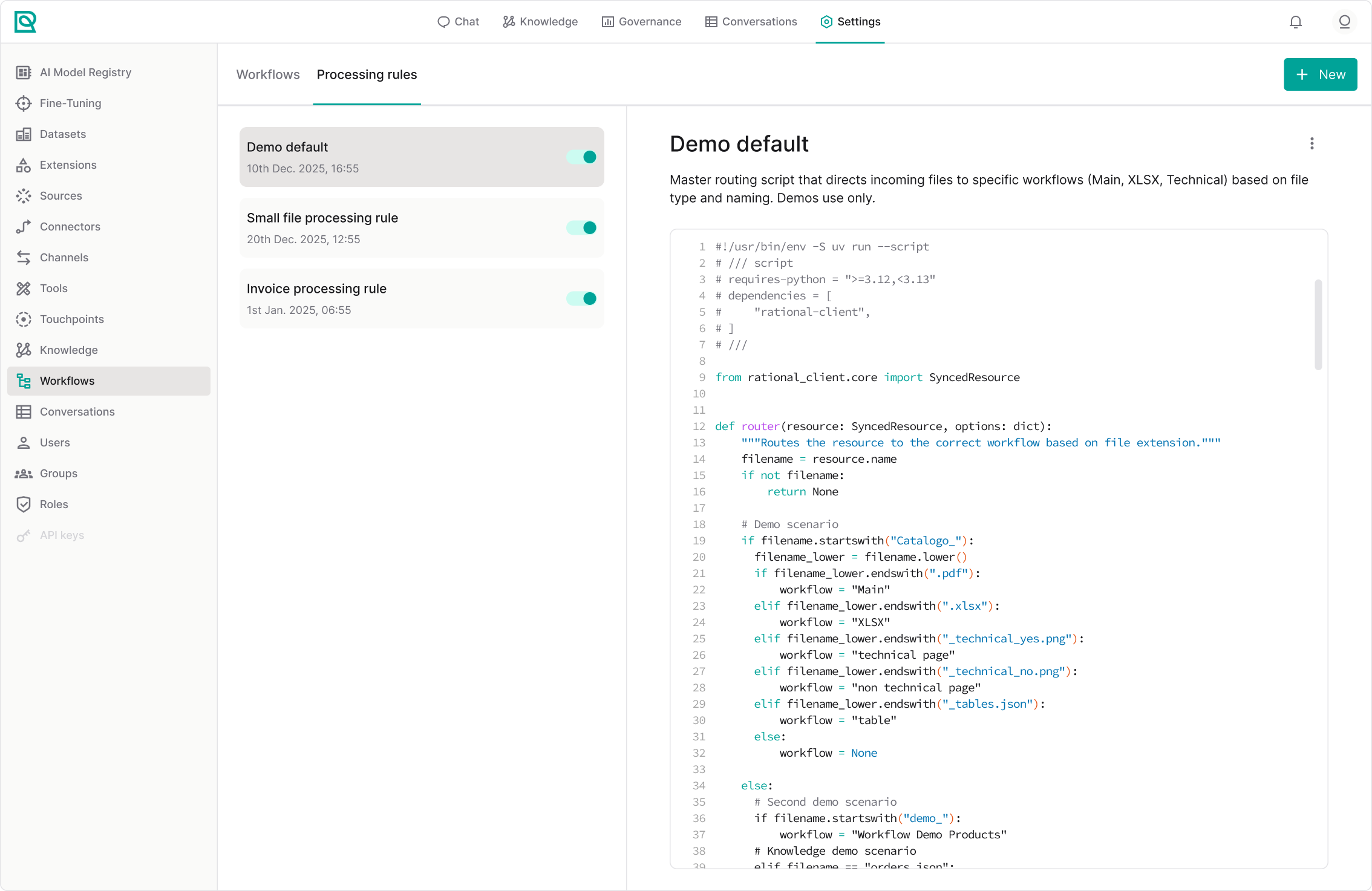
Rules list
The left panel displays all processing rules that have been created. For each rule, you can see:
- The rule name.
- An enable/disable toggle.
This list allows you to quickly identify which rules are active and which are currently inactive.
Rule editor
When you select a rule, its configuration is displayed in the editor on the right side.
The editor includes:
- The rule name and description.
- The editable logic or configuration area (JSON or script-based input).
- An action menu that allows you to:
- Edit the rule details (name, description, and logic).
- Delete the rule.
Creating your first processing rule
If you’re a new user, the page will appear empty. In this case, you can create your first rule in a few simple steps.
- Click the + New button in the center of the page.
- Enter a clear and descriptive name: for example
MyProcessingRule - Optionally, add a short description explaining the rule’s purpose and scope.
- Define the rule logic in the code input area.
Once these fields are filled, you can proceed to enabling and testing the rule.
Processing rule logic
A processing rule allows to devise which workflow to apply to the Knowledge documents. Being code, you can develop arbitrarily complex conditions to decide which workflow applies to your document, for example:
#!/usr/bin/env -S uv run --script
# /// script
# requires-python = ">=3.12,<3.13"
# dependencies = [
#     "rational-client",
# ]
# ///

from rational_client.core import File
from rational_client.utils import run


def router(resource: File, options: dict):
    """Routes the resource to the correct workflow based on file extension."""
    filename = resource.name
    if not filename:
        return None

    # Main switch
    if filename == "orders.json":
        workflow = "Workflow Orders"
    elif filename == "products.json":
        workflow = "Workflow Products"
    elif filename == "orgchart.json":
        workflow = "Workflow Orgchart"
    elif filename == "stores.json":
        workflow = "Workflow Stores"
    elif filename.endswith(".pdf"):
        workflow = "Workflow PDF"
    elif filename.endswith(".doc") or filename.endswith(".docx"):
        workflow = "Workflow Docling"
    elif filename.endswith(".urls"):
        workflow = "Workflow Urls"
    else:
        workflow = None

    return workflow

run(router)
As for the workflows, the entrypoint is the run function which triggers the processing rule business logic, the router function.
Basically, here we decide the workflow to apply, based on some characteristics of the Knowledge document, e.g. its filename.