Sources
A source is a connection to an external system that supplies data to Rational AI, such as an Amazon S3 bucket or a Google Drive folder. Sources keep your content in sync on a schedule so the Knowledge module always works from up-to-date material. Use this section to add sources, configure how often they sync and monitor the result of each synchronisation.
Browse sources
The Sources page lists every configured source as a card on the left, each showing its name and provider icon. Use the search box above the list to filter sources by name, and click a card to open its details on the right.
The details panel shows:
- Description – An editable note describing the source.
- Provider – The underlying provider (for example, AWS or Google Drive).
- Sync mode – How synchronisation is triggered (for example, Periodic).
- Schedule – When the source syncs (for example, Every hour at 30 minutes).
- Next scheduled sync – The date and time of the upcoming sync.
- Status – The current sync state (for example, Synced).
- Sync history – A table of past syncs with their timestamp (Last sync at) and Outcome.
After editing fields such as the description, use Save to apply changes or Undo to discard them.
Add a source
Click New in the top-right corner and fill in:
| Field | Description |
|---|---|
| Name | A name to identify the source. |
| Description | Optional notes about the source. |
| Type | The kind of source: Amazon S3, Azure Blob Storage, Google Cloud Storage, Google Drive, HTTP and more. |
| Connector | The connector that holds the credentials used to access the source. |
Choosing a type reveals type-specific options under Advanced settings (for example, the Bucket for an Amazon S3 source). Click Save to create the source.
Synchronization settings
Each source has its own synchronisation settings that control when it runs and what happens to derived content when items are removed at the origin.
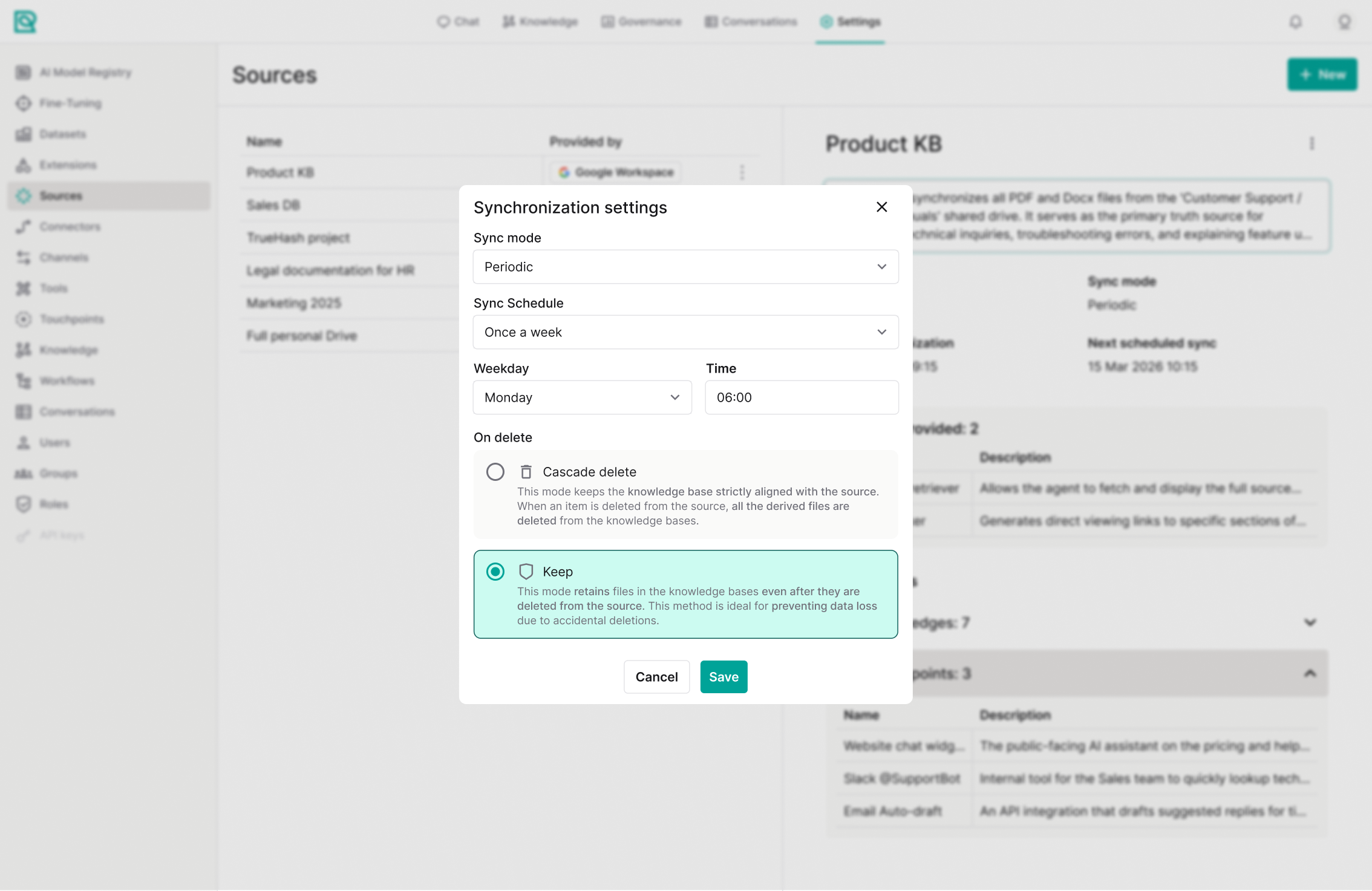
| Setting | Description |
|---|---|
| Sync mode | How synchronisation is triggered, for example Periodic. |
| Sync Schedule | How often the source syncs (for example Once a week), with the weekday and time when applicable. |
| On delete | What happens to the knowledge base when an item is removed from the source: Cascade delete keeps the knowledge base strictly aligned with the source by deleting the derived files too, while Keep retains those files to prevent data loss from accidental deletions. |
Manage a source
Open the options menu (the three vertical dots) in the details panel to:
| Action | Description |
|---|---|
| Edit | Update the source's name, description, connector or advanced settings. |
| Delete | Remove the source from the platform. |