Configure a connector
Connectors are how Rational AI talks to the outside world. This guide shows you what a connector is, how to add one, and how to check what it powers before you change it.
A connector links Rational AI to an external provider so the platform can use that provider's models, data sources, or tools. For example, a connector to OpenAI or Anthropic is what lets you use their language models inside Rational AI.
You will find connectors at Settings → Connectors.
What a connector is
A connector is a saved, reusable link to one external provider. Once configured, it can back several things at once: an AI model, a data source, or a tool. That is why connectors live in their own area instead of being set up over and over inside each feature.
The Connectors page lists everything you have configured on the left, such as Rational Connector and OpenRouter. Select one to see what it does:
- A short description of the connector.
- Its Provider (the external service it links to).
- A Used N times counter, so you can see how active it is.
- How many AI Models, Sources, and Tools it currently backs.
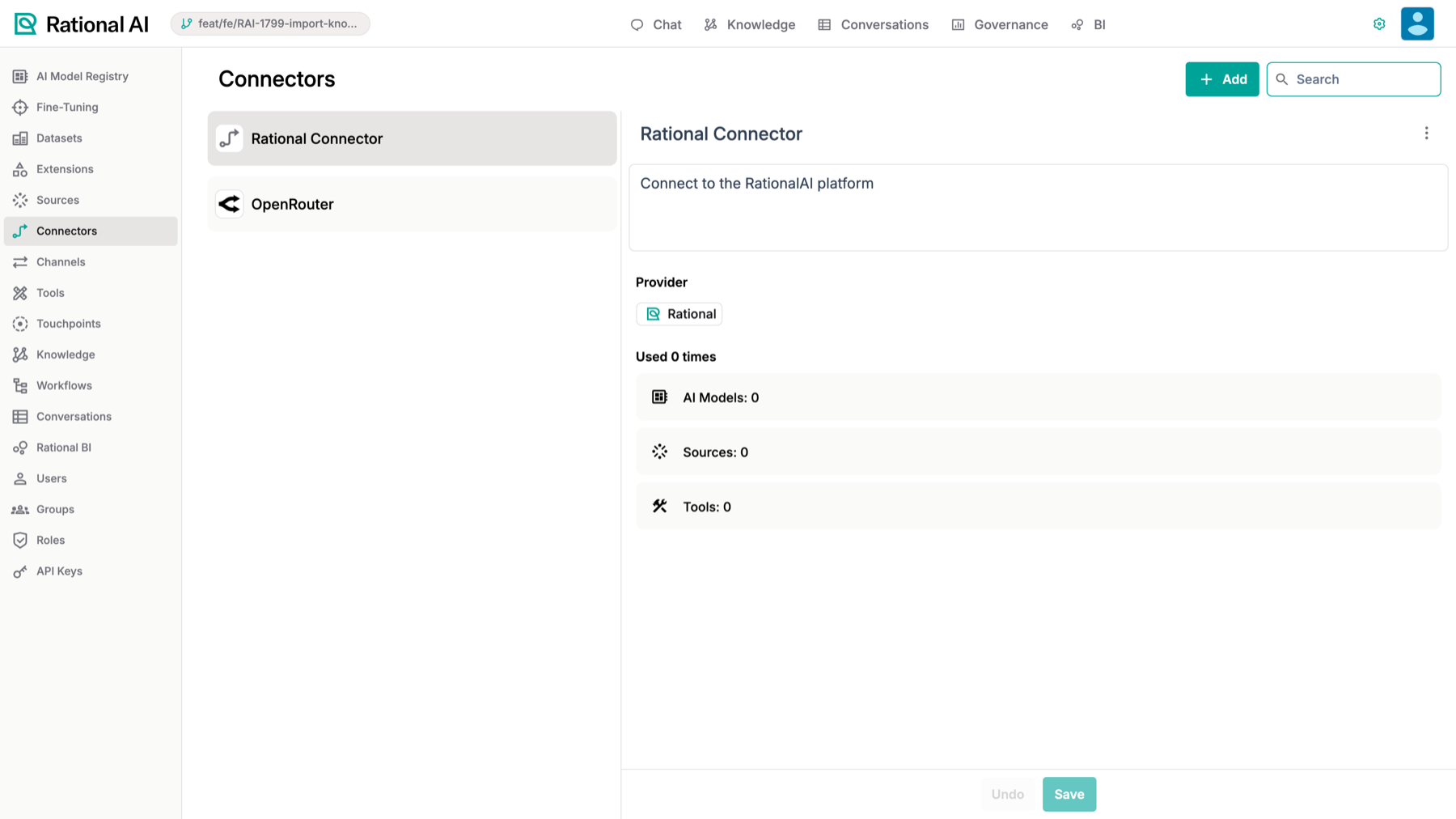
The Connectors page: each connector, its provider, and what it powers (models, sources, tools).
Add a connector
- Go to Settings → Connectors and select Add. This opens Add a new connector.
- Choose a provider from the gallery. Each option has a one-line description to help you pick. Available providers are Google, AWS, OpenAI, Anthropic, OpenRouter, Xference, OpenAI Compatible, Brave Search, Google Service Account Key, and Azure.
- Supply the provider's credentials. This is usually an API key you get from the provider's own dashboard. Paste your own key into the connector's field; never reuse someone else's. Keys are stored by the platform and are not shared.
- Select Save.
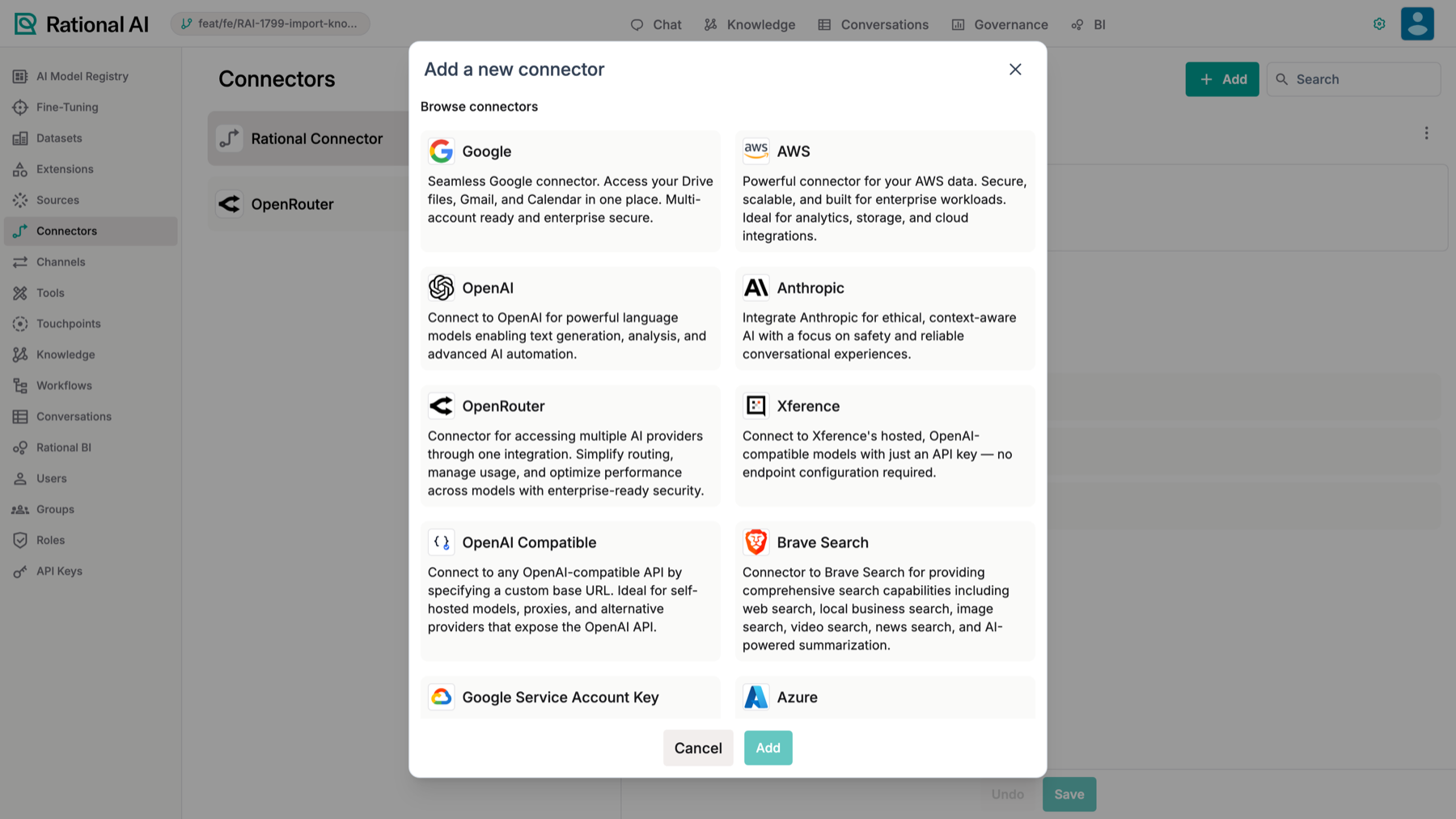
Adding a connector: choose a provider from the gallery.
The gallery offers many providers, but you only need the ones whose models or services you actually plan to use. If your provider isn't listed by name but offers an OpenAI-style API, OpenAI Compatible lets you connect it with a base URL and key.
See what a connector powers
Connectors rarely sit on their own. Before you edit or remove one, check what depends on it, so you don't break a model or a data source that's in use.
Select a connector in the list and look at its AI Models, Sources, and Tools counts. These tell you exactly where the connector is wired in:
- AI Models — a connector is what a model proxy points to. When you add a third-party model in the AI Model Registry using Add a proxy to a third-party model, you select the connector that reaches the provider.
- Sources — some Sources use a connector to reach the external system that holds your data.
- Tools — some tools (such as a web search tool backed by Brave Search) rely on a connector for access.
The Used N times counter is a quick health check: a connector showing zero uses is safe to remove, while a heavily used one should be changed with care.
Result
You have a connector configured and linked to an external provider, and you know how to see what it powers. You can now point an AI model, a Source, or a tool at it. A common next step is to add a third-party model in the AI Model Registry that uses your new connector.