Rational Agents
The Chat answers a question and waits for the next one. An agent takes a job and carries it through: it reads, runs commands on its own computer, calls the tools you gave it, writes the result down and checks it before saying it is done. The Agents section of Control Room is where you build these agents, hand them work, watch them do it and step in when they need a decision.
This page is the map of the section. Each part has its own guide, linked below.
An agent is a saved profile: a name, a set of instructions, a model from the AI Model Registry, the tools it may use, the Knowledge bases it may touch and what starts it. Every time it works, the agent opens a run: one piece of work, with its own log, its own result and, when needed, its own requests for your approval. Runs happen on the agent's computer, a persistent Linux workspace that keeps its files between runs.
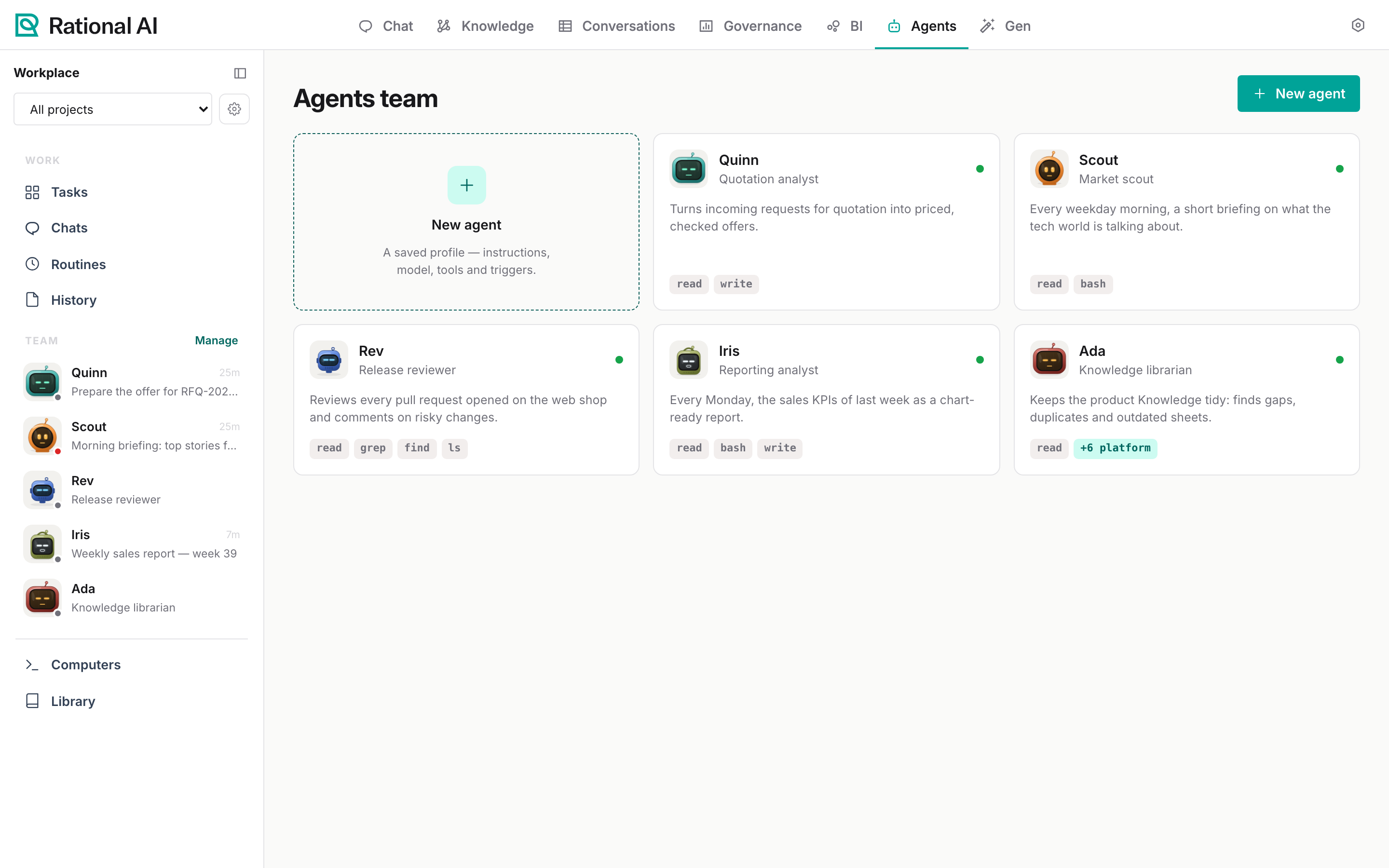
The examples in these guides follow one small team at a fastener manufacturer:
| Agent | Role | How it is started | What it does |
|---|---|---|---|
| Quinn | Quotation analyst | Tasks on the board | Prices requests for quotation and writes the offer file, asking before it writes |
| Scout | Market scout | Every weekday at 08:00 | Reads the day's tech news and writes a five-story briefing for sales |
| Rev | Release reviewer | A GitHub pull request | Reviews each pull request opened on the web shop repository |
| Iris | Reporting analyst | Every Monday at 07:00 | Computes last week's sales KPIs and writes the weekly report |
| Ada | Knowledge librarian | On demand | Finds outdated or duplicated sheets in the product Knowledge |
Prerequisites
Before you start, make sure you have:
- The Agents module in your licence. The Agents tab appears in the top bar only when the licence includes it; see Licence and activation.
- Administrative access. Agents, their tasks and their runs are governed by the platform permission system; today, the people who work with agents are administrators.
- A text-generation model in the AI Model Registry. Agents without a model of their own use the platform Agents model default (see Choose the model agents use).
- A cloud installation. Agent runs and agent computers run on the Rational AI cloud; the on-premise bundle does not include them yet.
Find your way around
Open Agents in the top bar. The Workplace sidebar is the same on every page:
| Sidebar entry | What you find there | Guide |
|---|---|---|
| Project picker | Narrows the whole section to one project; the gear next to it opens Projects. | Delegate work with tasks |
| Tasks | The board of work you handed to agents: Queued, Working, Needs you, Done. The orange badge counts runs waiting for your approval. | Delegate work with tasks |
| Chats | Direct and group conversations with your agents. | Chat with agents |
| Routines | Every agent with its trigger, tools and last run; pause and resume them here. | Schedule and trigger agents |
| History | Every run, newest first, filterable by outcome. | Follow runs and approve actions |
| Team | The roster: each agent with what it is doing right now. Manage opens the Agents team page. | Build an agent |
| Computers | Each agent's workspace machine and its open run. | Agent computers and the tools library |
| Library | Every tool and skill that can be granted to an agent. | Agent computers and the tools library |
In the roster, the dot and the second line tell you what each agent is doing: Idle, Working, Starting, Needs you, Retrying or Failed, followed by the task it is working on.
How the pieces fit
- Build the agent once: instructions, model, tools, the tools that must ask first, Knowledge access and what starts it.
- Give it work in one of three ways: a task on the board, a message in a chat, or a trigger (a schedule, an API call, a GitHub event) that starts it without anyone opening the page.
- Each piece of work is a run. You can follow it live, steer it with a message, stop it or retry it.
- When the agent reaches a tool you marked "Ask me first", the run pauses and the task moves to Needs you until someone approves or rejects the call.
- When the run ends, its answer is posted on the task, the task moves to Done (or back to Needs you if something went wrong) and the run stays in History.
Choose the model agents use
Every agent can pick its own model. Those that do not use the platform default, set once for everybody:
- Go to Settings → AI Model Registry and open Default models.
- Set Agents model — "Used by agents without a model override."
Settings → Agents (under Capabilities) links to the same default through Open Model Registry defaults → and lists every agent profile with its trigger, execution and tools; each row opens the profile.
If your organisation has a ChatGPT workspace subscription, an administrator can connect it under Settings → Connectors → ChatGPT subscription (Connect ChatGPT, then enter the one-time code on OpenAI) and press Sync models. The subscription's models are registered in the AI Model Registry, where they can be chosen as the Agents default or on a single agent. Like every other model, their calls go through the platform gateway, so they are captured and governed the same way.