Agent computers and the tools library
An agent does its work on a computer of its own: a Linux machine where it can run commands, write files, open a browser and pick up tomorrow where it left off today. This guide shows how to check and control those computers, and how to browse the Library of tools and skills you can give your agents.
Each agent has a persistent workspace machine: Linux with a desktop, a terminal, Chromium, Node, Bun, Python, Git and the usual build tools. Its files live in /home/agent/workspace and survive between runs, as do the skills installed on it. The computer starts when a run needs it and stops after a period of inactivity; stopping it never deletes its files. It runs one job at a time: other runs of the same agent wait in a queue.
Prerequisites
- Agent computers enabled on your installation. When they are not, the computer panel says "Computer environments are not enabled on this server. Contact your administrator to configure the service."
- Update rights on the agent to start, stop or open its computer.
Check the computers
Open Agents → Computers.
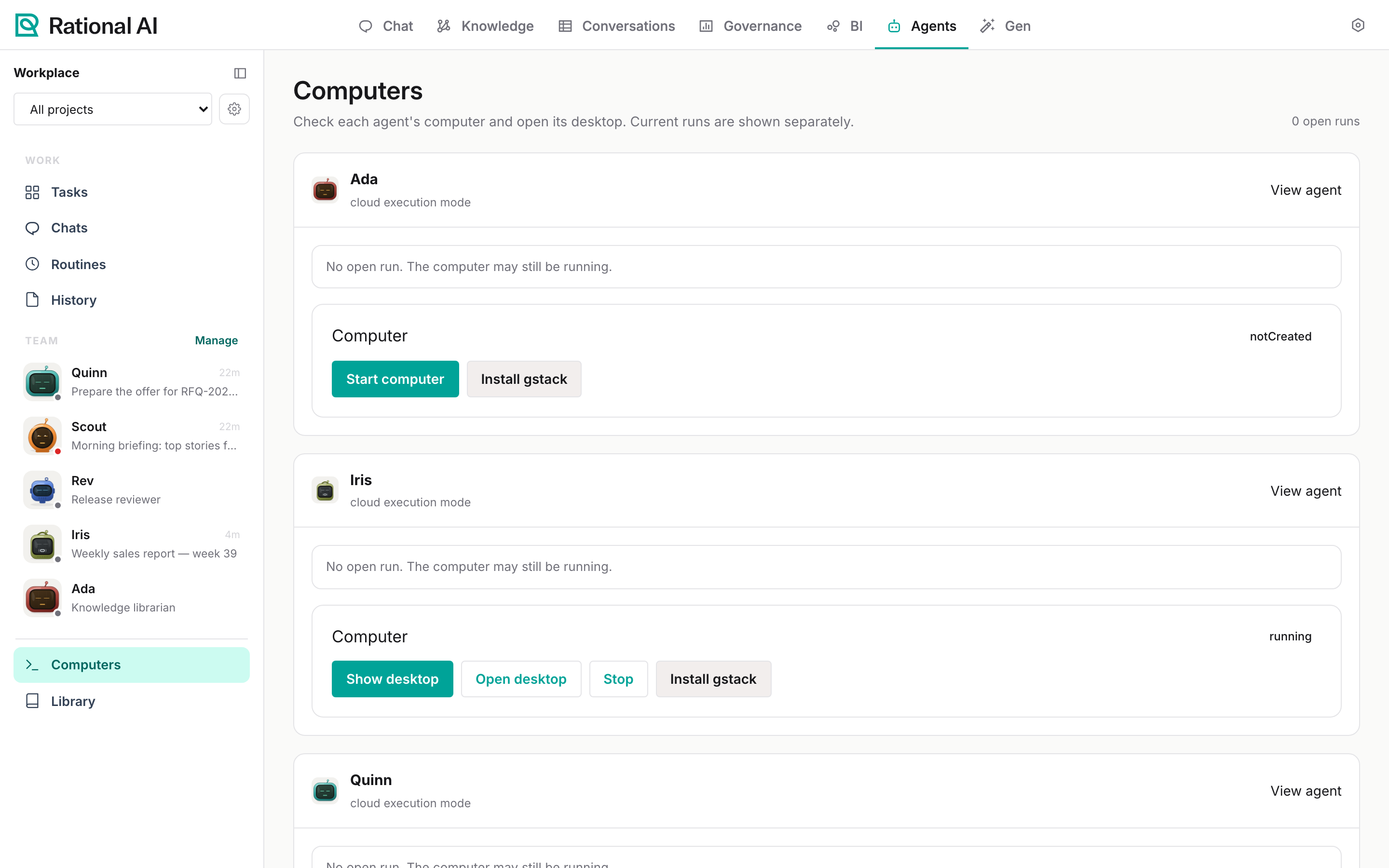
The page lists every agent with its computer and its open run, if any. The count at the top shows how many runs are open.
- With an open run, the card shows Open run and its status, with View run and Stop run.
- Without one, it says "No open run. The computer may still be running.": the computer's own state is shown in the panel below.
The same Computer panel is on every agent's page.
| State | Means |
|---|---|
notCreated | The agent has never needed its computer. The first run, or Start computer, creates it. |
running | Up and ready. |
idle | Up, with no work; it will stop on its own. |
stopped | Stopped; files and skills are kept. |
Control a computer
- Start computer starts it ahead of a run, so the first step does not wait.
- Show desktop opens the computer's desktop inside the page, Open desktop in a new tab; the viewer has Fit to window, Clipboard, Ctrl+Alt+Del, Full screen and Reconnect. Watching the desktop while a run works is the quickest way to see what the agent is doing in its browser.
- Stop shuts it down. Files stay.
- Install gstack installs a ready-made toolkit of browser automation and skills on the computer (Reinstall gstack to update it). It can take several minutes; the installed skills are listed under N installed skills.
Whatever you do on the desktop happens on the agent's machine, in the middle of its work. Use it to watch, or to unblock something the agent asked you about (a sign-in page, a confirmation) — not to work alongside it while a run is going.
Browse the library
Agents → Library lists everything an agent can be granted: "Every tool your agents can be granted, from the extensions installed here."
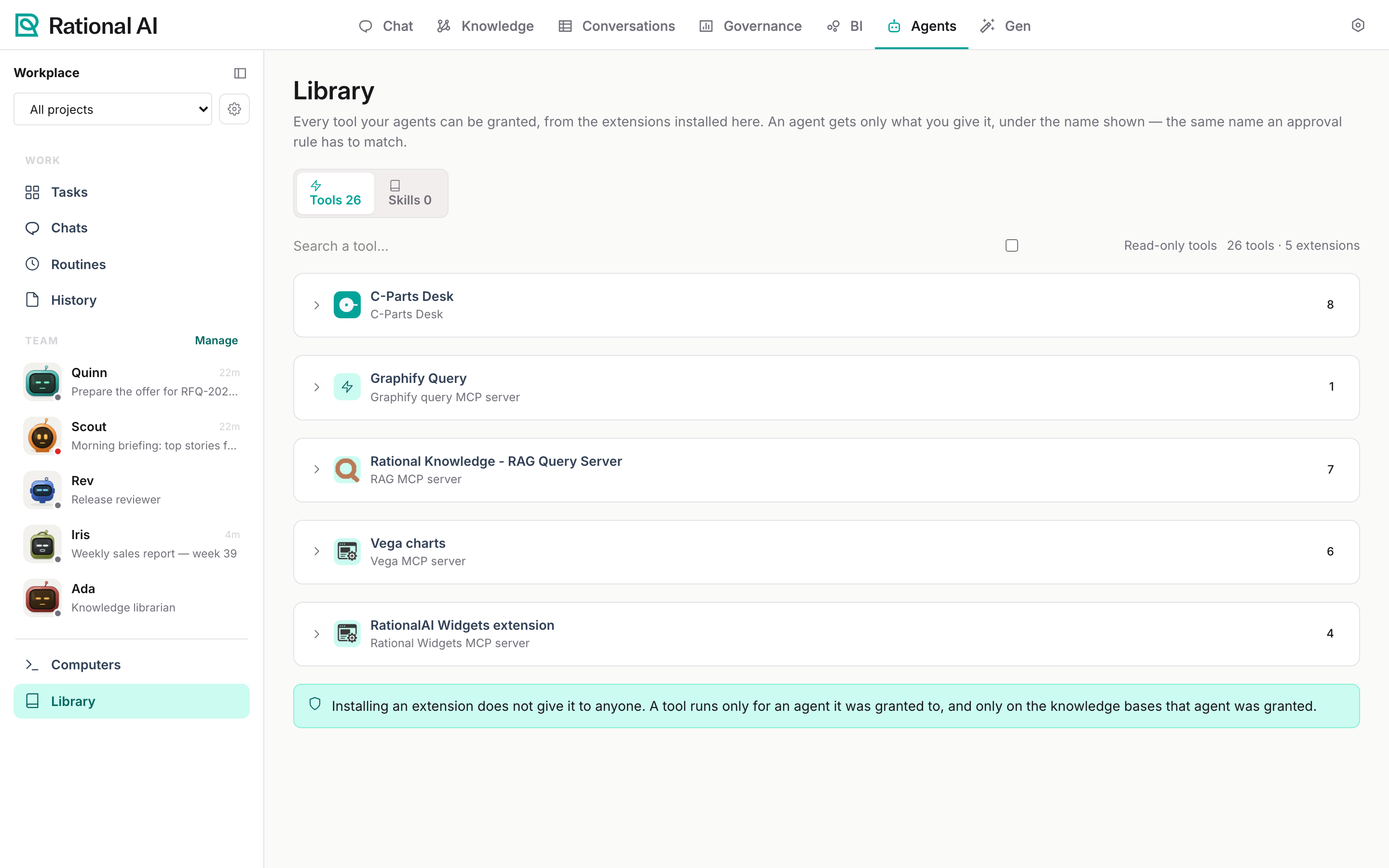
- Tools — grouped by extension. Expand one to see its tools, with the name the agent will see; that is also the name Ask me first matches. Search a tool… filters them, Read-only tools keeps only those that do not change anything. A needs setup badge means the extension still needs a connector before an agent can use it.
- Skills — the agent skills registered by installed extensions, with Search a skill….
Installing an extension does not give it to anyone. A tool runs only for an agent it was granted to on its profile, and only on the Knowledge bases that agent was granted. To add tools, install an extension (Manage extensions); to give them to an agent, select them under Extensions & tools in its profile (Build an agent).
Troubleshooting
| Symptom | What to check |
|---|---|
| "Computer service was not found…" or "The server could not reach the Computer service…" | The computer service is down or not configured. Contact your administrator; Retry connection tries again. |
| "The Computer service did not respond in time." | A computer is starting or under load. Retry connection after a few seconds. |
| Runs stay Queued | Another run of the same agent is using the computer. Check Computers; stop the open run if it is stuck. |
| The desktop shows Disconnected | Select Reconnect. If it keeps disconnecting, open it in a new tab with Open desktop. |