Manage extensions
Extensions are how you give Rational AI new capabilities, most often by connecting it to outside tools your agents can call. This guide walks through everything you do with extensions in the UI: where the packages you can install come from, installing one from the catalogue or straight from a file, configuring it so it starts running, reading what each extension card tells you, and wiring up extensions that reach external services over the network.
An extension is a bundle that adds a capability to Rational AI, most commonly one or more MCP servers. MCP (Model Context Protocol) is an open standard for connecting AI agents to external tools and data sources, so an MCP server is essentially a set of tools your agents can call.
Two distinct steps put an extension to work. Installing a package adds it into your tenant. Configuring it is what actually starts it running. These steps are separate and explicit, so a package landing in your tenant never silently starts talking to anything.
This page covers managing and installing existing extensions. To create one from scratch, including its manifest, see Build an extension. Once an extension is installed, Update and roll back extensions covers keeping it current.
Where extensions come from
Your tenant doesn't resolve extensions from a single registry. It resolves them from several sources, much the way a Linux system resolves packages from several apt sources:
- The platform catalogue — the releases Rational AI publishes. Every tenant sees the same catalogue.
- Your local packages — anything you installed from a file, by drag-and-drop or through the API. This is your own tenant's shelf, the
dpkg -iequivalent, and nobody else sees it. - Remote sources — third-party registries that can be attached for your organisation. Whether any are attached, and which, is set up for you; from your side they simply contribute more packages to browse.
Whatever the source, a release is one immutable combination of publisher, name, and version. Your installation points at exactly one release at a time.
You can upload your own package of an extension the platform catalogue also publishes — a patched build of something standard, for instance. There's no conflict to resolve up front, because overlap is settled per version:
- For a version both offer, the catalogue's copy wins the listing. Your copy stays resolvable and resurfaces if the shared release is ever withdrawn.
- A version only you have is always listed, right alongside the catalogue's versions.
Packages you upload are attributed to your own tenant publisher automatically, so an overlap only happens when a manifest deliberately names a shared publisher.
Prerequisites
Before you start, make sure you have:
- Administrative access: an account with extension management privileges.
- The extension package (only if you're installing your own): a
.tar.bz2,.zip,.mcpbfile, or a baremanifest.json. The format is detected automatically. - Any required configuration values: for remote MCP servers reached over the network, the endpoint URL plus whatever authentication token or header the server expects.
Read an extension card
Every extension appears as a card on the Extensions page, and the card is your at-a-glance status check before you open anything. When an extension declares a version in its manifest, that version appears right next to the extension name, so you can confirm which release is installed without digging into details. Each card also carries an enable toggle for turning the extension on or off.
Install an extension from the catalogue
- Go to Settings → Extensions and select + Add.
- Browse the available extensions. The detail pane opens on the first not-yet-installed extension, so it's never blank when the dialog appears.
- Select the extension you want, then confirm to install it into your tenant.
Extensions you've already installed remain in the list, shown disabled with an Already installed tag. You can see what's in place at a glance, but you can't re-select or double-install it.
Install a package from a file
Do this when you have a package of your own — something you built, or a build someone sent you. It becomes one of your tenant's local packages: installed for you, invisible to everyone else.
- Go to Settings → Extensions.
- Drag the package from your file system and drop it anywhere on the page. A dashed drop overlay appears while you drag, confirming the page will accept the file.
- Release the file.
You can also drop a package without leaving the install flow: drag it directly onto the list inside the Add extension dialog. The package is added and the new entry is selected for you automatically, ready to install.
Accepted formats are .tar.bz2, .zip, .mcpb, or a bare manifest.json; the format is detected automatically. Dropping anything else shows a warning toast and uploads nothing. Re-uploading a package whose name identifier and version already exist surfaces a conflict as an error toast, so you'll know to bump the version first — releases are immutable, so a change always means a new version.
Configure an extension so it starts running
Installing never demands configuration up front. A package that needs values you haven't supplied still installs successfully — it simply lands installed and disabled, with no configuration and nothing running. That's a valid resting state, not a failure: you can install now and set it up when you have the credentials.
Creating the extension's first MCP-server configuration is what does the rest, in one step: it starts the server, discovers the tools it actually serves, and enables the extension.
- Open the extension on Settings → Extensions.
- Open its settings and fill in what the extension asks for — API keys, connection strings, endpoints.
- Save. The extension comes up enabled, and its tools appear.
An extension whose parameters all carry defaults has nothing left to resolve, so it comes up configured and enabled the moment you install it, with no extra step.
If you save a configuration that's missing a required value, the save is refused with a clear validation error and the extension stays disabled and unconfigured. Nothing half-starts, and you can correct the value and save again.
An extension can hold more than one configuration of the same server — a second set of credentials, a second endpoint — and each discovers its own tools. The first configuration is the default one and can't be deleted while the extension is installed; deleting any of the extras leaves the extension enabled on the default.
Configure remote (HTTP) MCP servers
Many extensions connect to MCP servers running on your own machine, spawned as a local process. Others reach servers across the network over HTTP, and a single extension can bundle both kinds. Remote servers are the ones that need a little setup, because Rational AI has to know where they live and how to authenticate.
Tell local and remote servers apart
Open the extension's details page and find the MCP servers section. Each server is labelled: a remote server shows a Remote chip alongside its endpoint URL, while a local one shows a Local chip. The same view also lists the tools the extension provides, so you can see at a glance what your agents will be able to call.
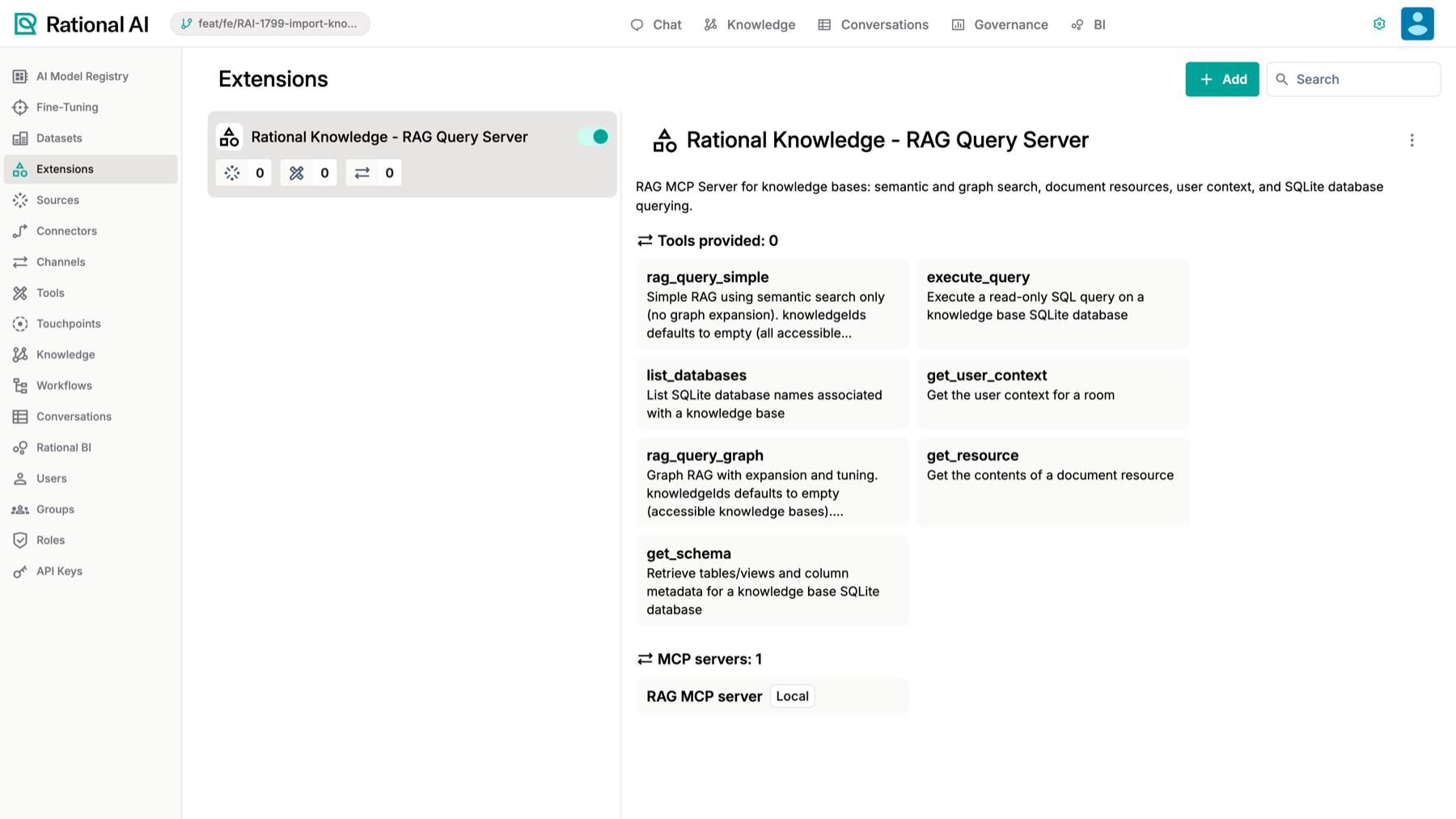
An extension’s detail view: the tools it provides and the MCP servers it connects to (local or remote).
Add authentication for a remote server
For a remote server that requires authentication, enter the token or header value in the extension-configuration form. That value comes from your configuration and is never written into the manifest, so credentials stay out of the shared bundle. Headers that resolve to empty are dropped automatically, which means a public, no-auth server is never sent a blank header.
Rational AI ships ready-to-use remote MCP manifests for many popular connectors, including GitHub, Linear, Atlassian, monday, Airtable, Supabase, Snowflake, Sentry, PagerDuty, and Shopify. Each one just needs an endpoint URL and an authentication header from your configuration. There's also a generic remote-mcp extension for connecting any other remote MCP server: supply its URL and, if needed, an Authorization header.
Result
You know that extensions resolve from several sources — the platform catalogue, your own local packages, and any attached remote source — and how an overlap between them is settled per version. You can read an extension's version straight from its card, install one from the catalogue or by dropping a package onto the page, and you know that installing leaves it disabled until the first configuration starts it, discovers its tools, and enables it. For extensions with remote MCP servers, you can spot them by the Remote chip and endpoint URL and supply their credentials through the extension-configuration form, all without ever putting a secret into a manifest.
Related
- Update and roll back extensions — update policies, compatibility, and recovering from a bad update.
- Browse agent tools — the catalog of tools your installed extensions provide.
- Build an extension — authoring a package and its manifest.