Get started with Rational AI
Rational AI lets you build an assistant that answers from your data instead of guessing. This guide is the fastest path from an empty workspace to a working chat grounded in your own content — and a map of where to go next.
You'll meet four building blocks, and you set them up in order. A Model does the actual thinking (it lives in the AI Model Registry). A Knowledge is the store of your content the assistant searches (see Create a Knowledge). A Touchpoint wires a model and a Knowledge together into a working assistant. And the Chat is where you — and your users — talk to it.
Under the hood this is RAG, retrieval-augmented generation: the assistant pulls the most relevant pieces of your Knowledge and answers from them, so replies are grounded in your data rather than invented. New to the terms? The RAG and LLMs concept pages are a two-minute primer.
Prerequisites
- Administrative access to the Control Room settings.
- Some content to load — documents, an FAQ, a spreadsheet, anything text-based.
1. Connect a model
Your assistant needs two kinds of model: a text-generation model to write answers, and an embedding model to turn your content into something searchable.
- Go to Settings → AI Model Registry and select New.
- Add a model — proxy a provider such as OpenAI, Anthropic, or Gemini through a connector, or pull an open-source model from Hugging Face.
- Confirm that one text-generation model and one embedding model show as Available.
Full details: Manage AI models in the registry and Configure a connector.
2. Create a Knowledge
A Knowledge holds your content together with the rules for searching it.
- Go to Settings → Knowledge, select New, and give it a clear name.
- On the AI Search tab, turn on Allow AI search, pick your Embedding model, and choose a Chunking type (Semantic Chunker is a good default).
- Save.
Creating a Knowledge also creates a Touchpoint for it automatically, complete with a working RAG tool — so you'll have something to chat with straight away. Full details: Create a Knowledge.
3. Add your data
A new Knowledge is empty. Fill it either way:
- Connect a source and sync it — a shared drive, a website, a database: Integrate external data.
- Upload files directly into the Knowledge: Manage knowledge resources.
As content arrives it's chunked and embedded automatically, ready to be searched.
4. Chat with your assistant
- Open the Chat tab.
- Pick the touchpoint for your Knowledge.
- Ask a question your content can answer.
The assistant retrieves the relevant pieces and answers from them. Asking something you already know the answer to is the quickest way to confirm everything's wired up.
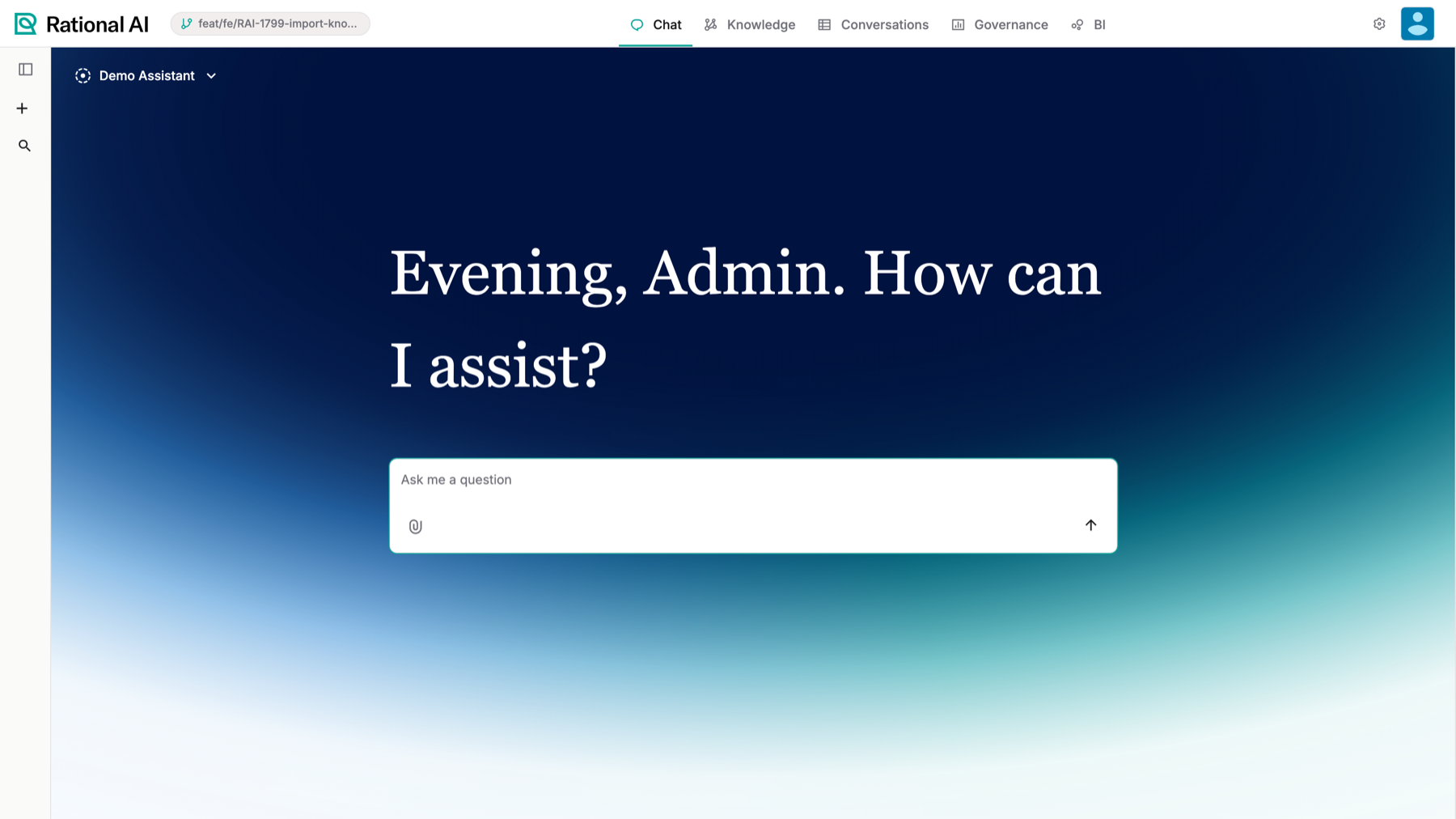
Your assistant, ready in the Chat.
More on the chat — attachments, exploring alternative answers, renaming, and agent takeover: Use the chat.
Open Settings → Touchpoints to set the conversation model, the system prompt that gives the assistant its personality and rules, which tools it can use, and whether it allows anonymous access. See Configure touchpoints.
Where to go next
You have a working assistant. From here you can:
- See how it's used — cost, latency, and a per-call audit log: Monitor usage, cost, and audit logs.
- Review conversations — with automatic titles, topics, and sentiment: Work with conversations and Configure conversation processing.
- Automate ingestion — turn raw data into knowledge as it arrives: Create a workflow.
- Add capabilities — give the assistant new tools by installing extensions.
- Sharpen answers — tune how retrieval works: Configure RAG.
- Customize a model — train one on your own examples: Fine-tune a model.
Result
You've connected a model, created a Knowledge, loaded your data, and chatted with an assistant grounded in it. That's the core loop of Rational AI — everything else builds on it.