Configure conversation processing
Rational AI can quietly enrich every end-user conversation while it happens: giving it a title, sorting it into a topic, and gauging how the user feels. This guide shows you where to turn each of these on and how to tune them.
Conversation processing is the work Rational AI does automatically behind the scenes on each conversation. It is the configuration behind the titles, topic chips, and sentiment badges you see in the Conversations list and in chat. These settings apply platform-wide, unless a touchpoint (a specific channel or entry point) overrides them.
Prerequisites
Before you start, make sure you have:
- Administrative access: an account with permission to change platform settings (see Roles and users).
- AI models configured: at least one active model in the AI Model Registry, so you have something to assign to each task below.
Open Settings → Conversations to begin. The page has four independent parts, each described below.
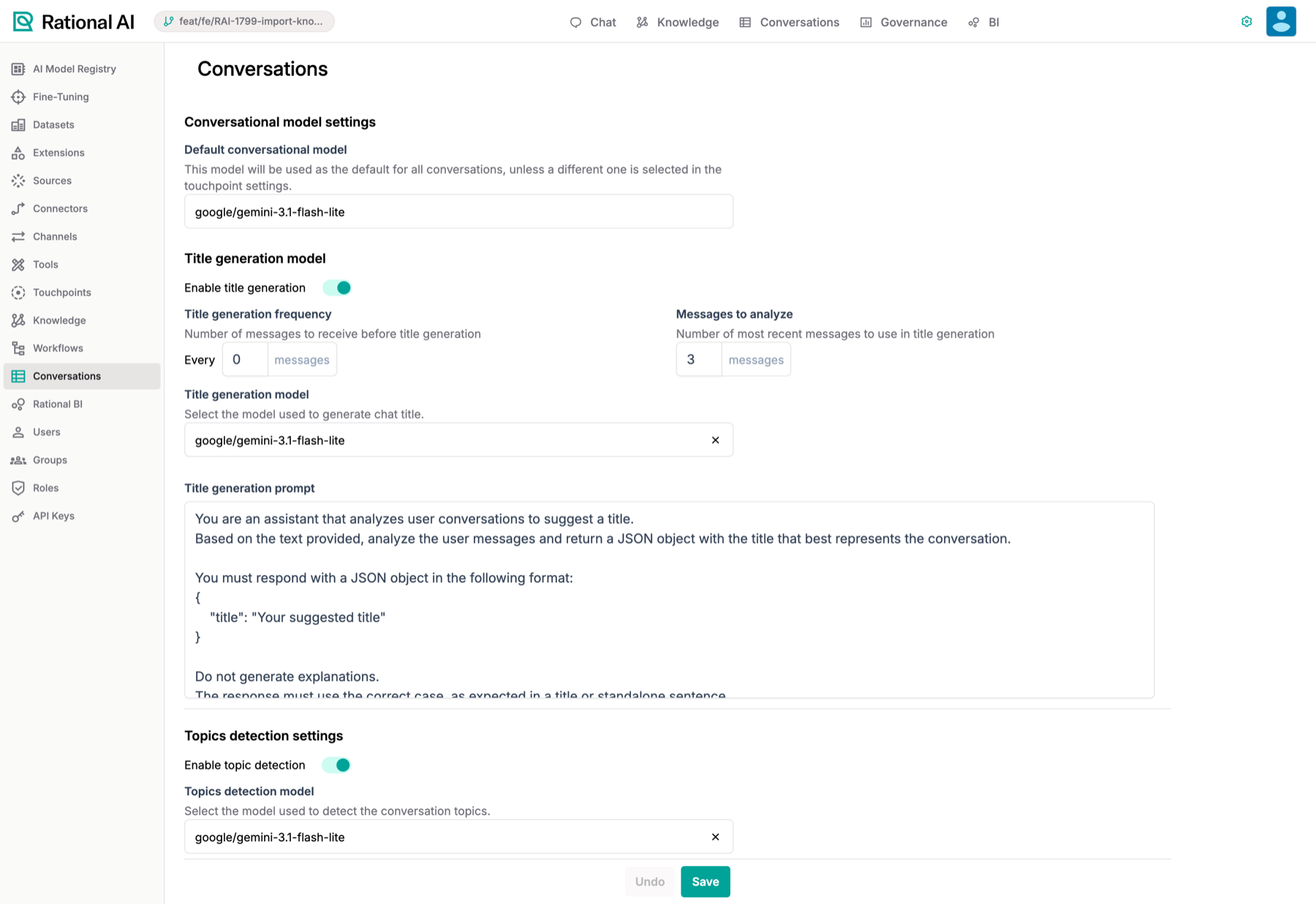
Settings → Conversations: the default conversational model, plus title generation, topic detection and sentiment analysis — each toggled independently with its own model.
Title generation, topic detection, and sentiment analysis are separate background tasks. You can enable any combination of them, and each runs on its own without slowing down the reply the user sees. Because each task is small and simple, it is usually sensible to give it a small, cheap model rather than your most powerful one.
Conversational model settings
This is the one setting that affects the replies users actually read.
- Under Conversational model settings, choose a Default conversational model. This is the model that generates the answers in every conversation.
- This default is used everywhere, unless a touchpoint picks its own model for its own channel.
Title generation
Title generation auto-names each conversation so you and your team can find it later in the Conversations list.
- Turn on Enable title generation.
- Set the Title generation frequency: how often a title is produced, expressed as "every N messages". A larger number means the title is refreshed less often.
- Set Messages to analyze: how many of the most recent messages the model reads when it writes the title.
- Choose a Title generation model: the model that writes the title.
- Leave the Title generation prompt as provided, or adjust it. This is the instruction the model follows; it returns the title as a small JSON object (a tiny block of structured text the platform can read back reliably).
Topic detection
Topic detection sorts each conversation into exactly one topic from a list you define. This is useful for reporting (seeing what people ask about most) and routing (sending conversations to the right place).
- Turn on Enable topic detection.
- Choose a Topics detection model.
- Set the Detection frequency (again, "every N messages") and Messages to analyze (how many recent messages the model reads), exactly as in title generation.
- Build your Topic list. These are the labels the model can choose from, for example Order Status, Billing Request, and Tech Support. Remove a topic with its ×, and add a new one with + New.
- Leave the Topic detection template prompt as provided, or adjust it. It instructs the model to return exactly one label from your list, and nothing else.
Sentiment analysis
Sentiment analysis estimates how the user feels during the conversation, surfaced as a sentiment badge alongside it.
- Turn on Enable sentiment analysis.
- Choose a Sentiment analysis model.
The title and topic prompt fields (the written instructions each model follows) ship with sensible defaults. You only need to touch them if the automatic titles or topics aren't coming out the way you want.
Result
When you are happy with your choices, select Save to apply them, or Undo to discard them. From now on, the tasks you enabled run automatically on every new conversation across the platform, and their titles, topic chips, and sentiment badges appear in the Conversations list and in chat.