Manage channels
A channel is a surface your users reach an agent through — a Telegram bot, a mailbox, the web chat. This guide covers what every channel has in common: the types available, how a channel decides whether the agent answers on its own, the connection lifecycle, and the controls over who may write in and what they may send. The per-type setup lives in its own guide.
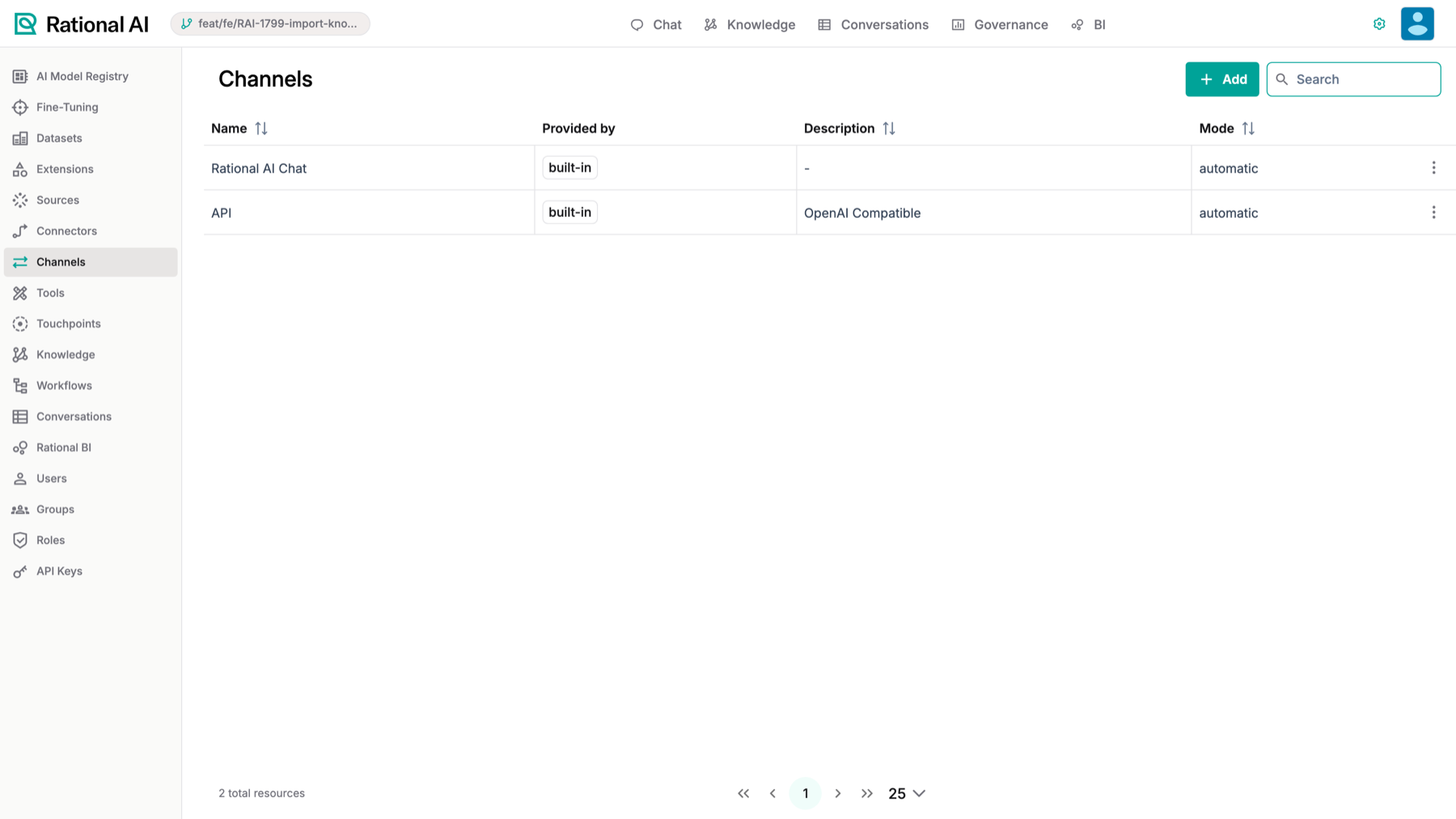
The Channels list: each channel, its type, who provides it, and its mode.
A channel is the medium through which people reach an agent: the doorway into the conversation. It doesn't change what the agent knows — that's the touchpoint — it changes where and how people talk to it.
Inbound messages become conversations you can read in Conversations, and replies go back out over the same channel in whatever form that surface expects.
Prerequisites
Before you start, make sure you have:
- Administrative access: an account with channel management privileges.
- The credentials for the surface you're connecting. A Telegram bot token, or a mailbox login — see the per-type guides below.
Channel types
Two kinds of channel exist, and they behave differently once connected.
Native channels are built into the platform, with their own connection handling, status reporting and message support:
| Type | Setup |
|---|---|
| Telegram | Connect a Telegram bot |
| Connect a mailbox |
Extension-provided channels come from an extension that declares a channel provider. They're driven by the extension rather than by the platform, so what they support depends on the extension.
Whichever kind you pick, the configuration form is generated from the provider's own schema — so the fields you're asked for are the ones that surface actually needs, and a value of the wrong type is rejected when you save rather than failing later at connection time.
Create a channel
- Go to Settings → Channels and select New channel.
- Enter a name. It must be unique across all channels — matching is exact and case-sensitive, so
Supportandsupportare two different names. A duplicate is rejected with an error under the field. - Choose the type, or the extension and channel provider for an extension-backed channel.
- Set the mode (see below).
- Fill in the configuration the form asks for.
- Save.
A channel's type and provider are chosen when you create it and can't be changed afterwards. Everything else — the name, the mode, the credentials, the policies — stays editable. If you need a different provider, create a new channel.
Choose the mode
The mode decides whether the agent answers by itself or a person does.
| Mode | What happens to an incoming message |
|---|---|
| Automatic | The conversation is assigned to the agent, which replies on its own. |
| Manual | The conversation is ingested and assigned to an operator. Nothing is sent until a person replies. |
| Draft | Same routing as manual — assigned to an operator, nothing sent automatically. |
The practical split is Automatic versus everything else: only Automatic lets the agent reply without a human. Manual and Draft both ingest the message and put it in front of a person, so a channel in either mode never sends anything you didn't send yourself.
Use Manual or Draft when you want the conversation captured and visible but not answered — a mailbox you're still evaluating, or a surface where every outgoing message needs a human behind it.
Connect, check, and disconnect
Native channels report a real connection state, which you'll find in the channel's details drawer along with the controls to change it.
- Connect validates your credentials against the live service before the channel is considered usable — a wrong bot token or a rejected mailbox login fails here rather than silently swallowing messages later.
- Status reports what the connection is actually doing: connected, in error, or disconnected. Email adds a state for a mailbox whose authorisation has expired and needs re-granting.
- Disconnect stops the channel and drops its stored tokens and connection state.
Editing credentials re-validates them, and for Telegram also re-registers the bot so the change takes effect rather than leaving the old configuration live.
Bot tokens, mailbox passwords and OAuth secrets are masked wherever the channel is read back — they never leave the platform in the clear once stored.
That means you can edit any other field and save without retyping the secret: a masked value returned unchanged keeps what's already stored. You only need to enter a credential again when you actually want to replace it.
Control who can write in
Every channel supports an allowed senders list. Leave it empty and anyone who can reach the surface can start a conversation; fill it in and everyone else is ignored.
Messages from senders that aren't allowed are dropped silently rather than answered with a refusal — a bot that argues with strangers is a bot that confirms it exists. The channel keeps a count of what it ignored, shown in the details drawer, so a filter that's too strict is visible rather than mysterious.
Both native channels also refuse to answer automated mail and other bots, so two systems can't get into a reply loop with each other. The per-type guides describe exactly what each one screens out.
Control what can be sent in
Attachments are configured per channel, and off is a legitimate setting:
- Allow attachments — whether files sent to this channel are accepted at all.
- Allowed types — a list of file extensions or MIME prefixes. Anything else is rejected.
- Maximum size — a per-attachment cap. The platform enforces a 25 MB ceiling regardless of what you set, so you can lower this but not raise it beyond that.
Accepted files go through the same path as files attached in the chat: images are passed to the model as vision input, and documents have their text extracted so the agent can actually read them. Operators can open or download what arrived — see Use the chat.
Related
- Connect a Telegram bot — bot setup, groups, and commands.
- Connect a mailbox — IMAP, OAuth, and email threading.
- Configure touchpoints — what the agent on the other side of the channel actually is.
- Channels — the concept, and how channels relate to touchpoints.
Result
Your channel is saved with a unique name, a type fixed at creation, and a mode that determines whether the agent replies on its own or a person does. You know where to check whether it's really connected, that stored credentials are masked and safe to save unchanged, and how to bound who may write in and what they may send.