Work with Conversations
Every chat your AI handles lands on the Conversations page, where you can review who it spoke with, how it went, and what was discussed. This guide covers the 2026 redesign and shows how a single conversation can surface more than one topic at once.
A conversation (sometimes called a room) is one back-and-forth exchange between a user and your AI. The Conversations page lists every conversation your AI has taken part in, along with its user, status, sentiment, topics, and date. Because a single exchange can wander across several subjects, each conversation can carry several topics, shown as separate chips.
Prerequisites
Before you start, make sure you have:
- Access to the Conversations page — an account that can view conversations.
- At least one conversation handled by your AI, so the table has rows to work with.
Open the Conversations page
From the topbar, select the Conversations navigation icon. The active tab is marked with a teal underline. The page opens to its header — page title, a search field, and an Actions menu — above the conversations table.
The 2026 design gives the header and table consistent padding and a flatter, lighter look: a white table header, no vertical column separators, and color-coded status (open = teal, closed = grey). Dates appear as MMM d, y h:mm a.
Read the table
Each row is one conversation. Scan across the columns to size up a conversation without opening it:
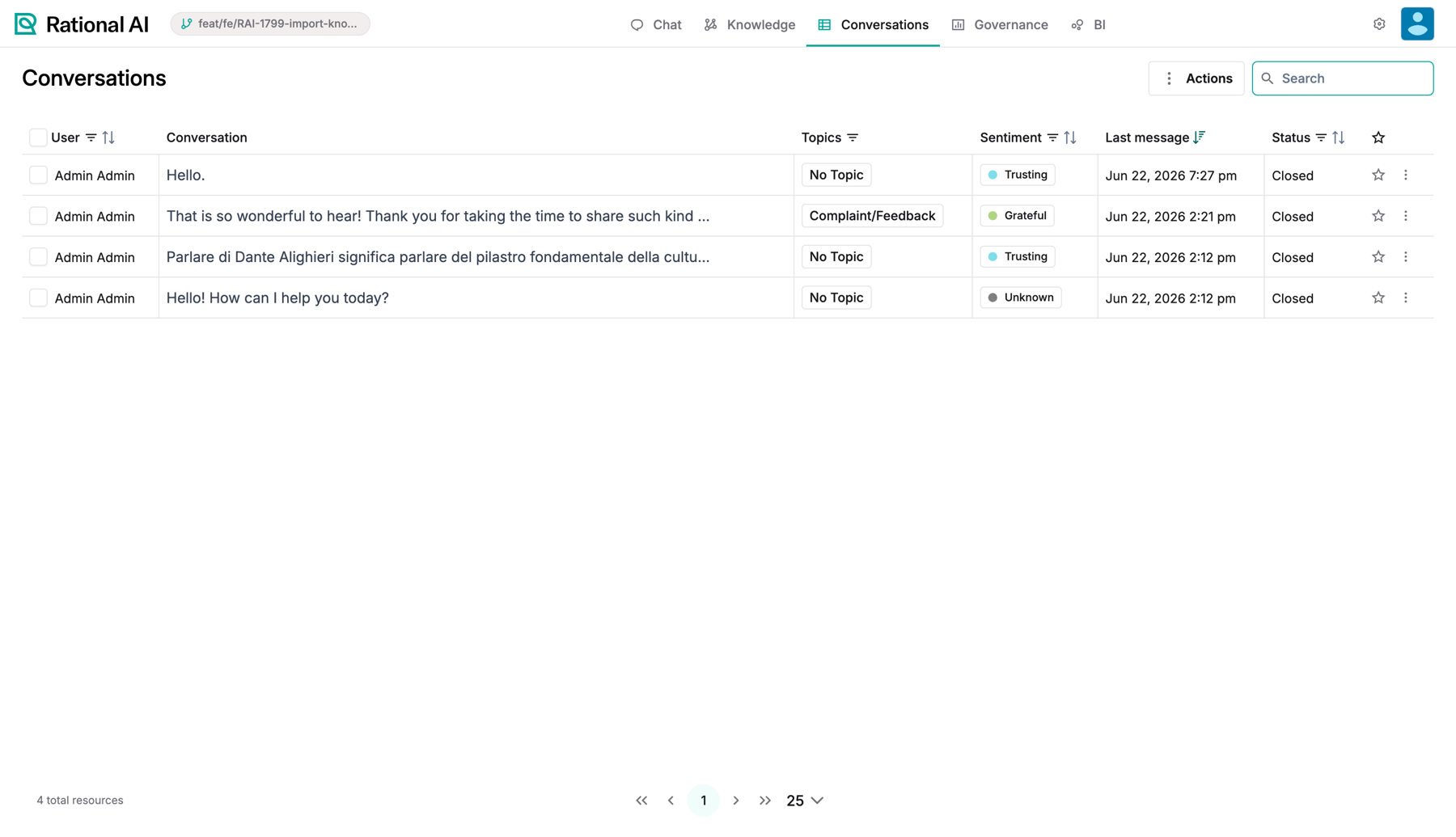
The Conversations list: every conversation with its detected topic, sentiment and status — sortable and searchable.
- User — who the conversation was with.
- Status — open (teal) or closed (grey).
- Sentiment — the mood the AI detected in the conversation.
- Topics — one chip per subject the conversation covered (see the next section).
- Date — when the conversation took place, formatted
MMM d, y h:mm a.
The topics and sentiment shown here are produced by your Configure conversation processing settings.
Work with multiple topics
Topics tell you what each conversation was actually about, so you can spot patterns across many chats at a glance. They're classified automatically — the AI reads each conversation and tags it without any manual work from you.
Because one exchange can cover several subjects, the Topics column shows a separate chip for each:
- A single-topic conversation shows one chip — for example,
Billing. - A multi-topic conversation shows several chips — for example,
Billing,Refund request, andAccount access. - A conversation with no topics shows a dash (
—).
Filter and search
Narrow a long table down to the conversations you care about. You can search across users from the header, or filter one column at a time.
Search by user
Use the search field in the header to find conversations by user. This matches against the User column.
Filter a single column
To filter on one column's values, select the funnel icon in that column's header:
- User — enter text to match.
- Sentiment — choose from the available options.
- Status — choose from the available options.
While a filter is active, its funnel icon turns teal, so you can tell at a glance which columns are filtered.
The User column filter and the header search field run the same query. Because of this, the User funnel also lights up teal whenever you're searching.
Run bulk actions
When you want to act on many conversations at once — say, clearing out test chats — the Actions menu handles them in a single step.
- Select the rows you want using their checkboxes.
- Open the Actions menu next to the search field.
- Choose one of:
- Recompute — re-run the automatic analysis (such as sentiment and topics) on the selected conversations.
- Delete — remove the selected conversations.
Result
You can browse every conversation in a cleaner, evenly padded table; read each one's user, status, sentiment, topics, and date at a glance; search or filter to find specific rooms; and act on a selection in bulk from the Actions menu. Conversations that span several subjects make that clear by showing one topic chip per subject.