Build an agent
An agent is only as good as its profile. The instructions say what the job is and how to do it; the tools say what it can touch; Ask me first says where it must stop and wait for you. This guide walks through the profile field by field, using Quinn, a quotation analyst who prices requests for quotation and must never write an offer without a person looking at it first.
Whatever starts the agent — a task, a chat message, a schedule or a webhook — the run starts from the profile: its instructions become the system prompt, its model answers, and it can use only the tools and Knowledge bases listed there. Changing the profile changes the next run, not the ones already going.
Prerequisites
- Access to the Agents section — see Rational Agents.
- A text-generation model in the AI Model Registry, or the platform Agents default.
- Optional: extensions with tools. Tools from installed extensions can be granted to an agent; the Library lists them all.
Create the profile
- In Agents, select Manage next to Team in the sidebar (or open Agents team), then New agent.
- The New agent panel opens on the right. Type the Name (required) and, optionally, a Role — the role is shown under the name everywhere the agent appears.
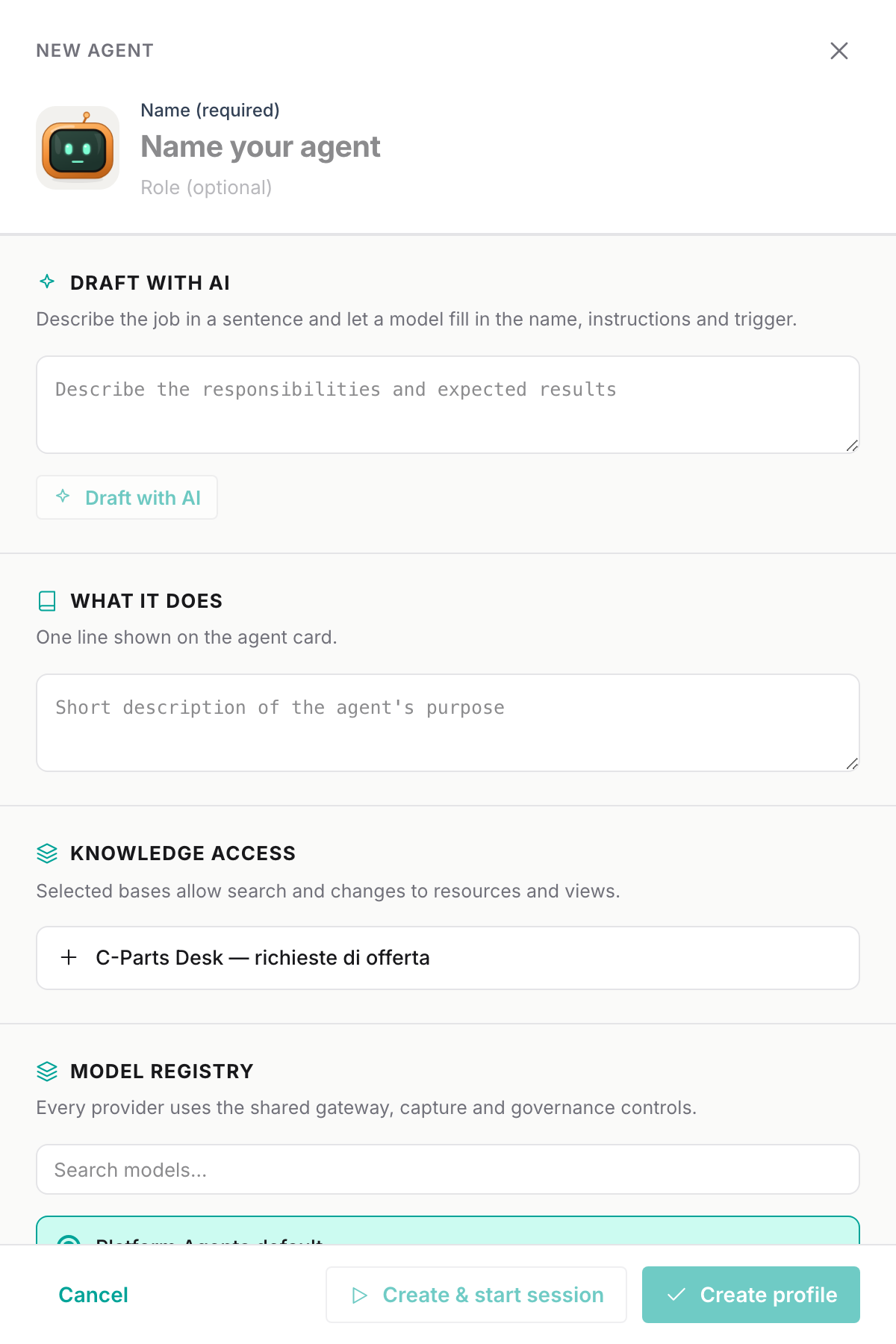
Let a model draft it
Under Draft with AI, describe the job in a sentence and select Draft with AI. A model fills in the name, description, instructions, trigger, tools and which tools ask first; for a schedule it also proposes the cron expression and the timezone. Everything it writes stays editable, so treat it as a first draft. If the model cannot produce a usable draft you are told "Couldn't draft this one — fill it in by hand."
For Quinn, a good one-liner is: "Price incoming requests for quotation from our price list, flag what we cannot make in-house and write the offer file, but ask me before writing it."
Describe it
- What it does — one line shown on the agent card: "Turns incoming requests for quotation into priced, checked offers."
- Instructions — "The system prompt for every run." This is where the job lives. Say what the agent receives, what it must produce and in what shape, what it must never do and how to report back. Quinn's say, among other things, "Never invent prices or codes. Write the offer as a Markdown file offers/<RFQ code>.md … Always write in English."
Agents verify their own work before they finish: a run that produced a file, a record or a precise answer can be checked, a vague one cannot. "Write the offer as offers/RFQ-….md with one row per line" gives the agent, and you, a way to know it is done. An agent without instructions can be saved but not started: Run now and Create & start session stay disabled until you add them.
Give it access to Knowledge
Knowledge access lists the Knowledge bases you can use. Select the ones this agent may search and change (resources and views). Quinn gets Customer quotes, the base with the price list, the plant capabilities and the quoting manual.
If you select none, the agent is not restricted to specific bases: it can work with every Knowledge base it can reach. Select at least one when you want to keep an agent inside a boundary.
Pick the model
Under Model Registry, keep Platform Agents default or choose a specific text-generation model. Every model goes through the platform gateway, so its calls are captured and governed like any other.
Choose the tools
Built-in tools
Tools are the file and shell tools the agent uses on its computer. Start from a preset and adjust:
| Preset | Tools |
|---|---|
| Coding (the default) | read, bash, edit, write |
| Read-only | read, grep, find, ls |
| All | all seven |
| Tool | What it does |
|---|---|
read | Read a file (line ranges, images) |
bash | Run a shell command |
edit | Edit a file via find/replace |
write | Create or overwrite a file |
grep | Search file contents (regex) |
find | Find files by name or glob |
ls | List a directory |
An amber dot marks the tools that write or execute (bash, edit, write). Knowledge access is independent of these tools: an agent with no built-in tools can still search the Knowledge it was given.
Extensions and tools
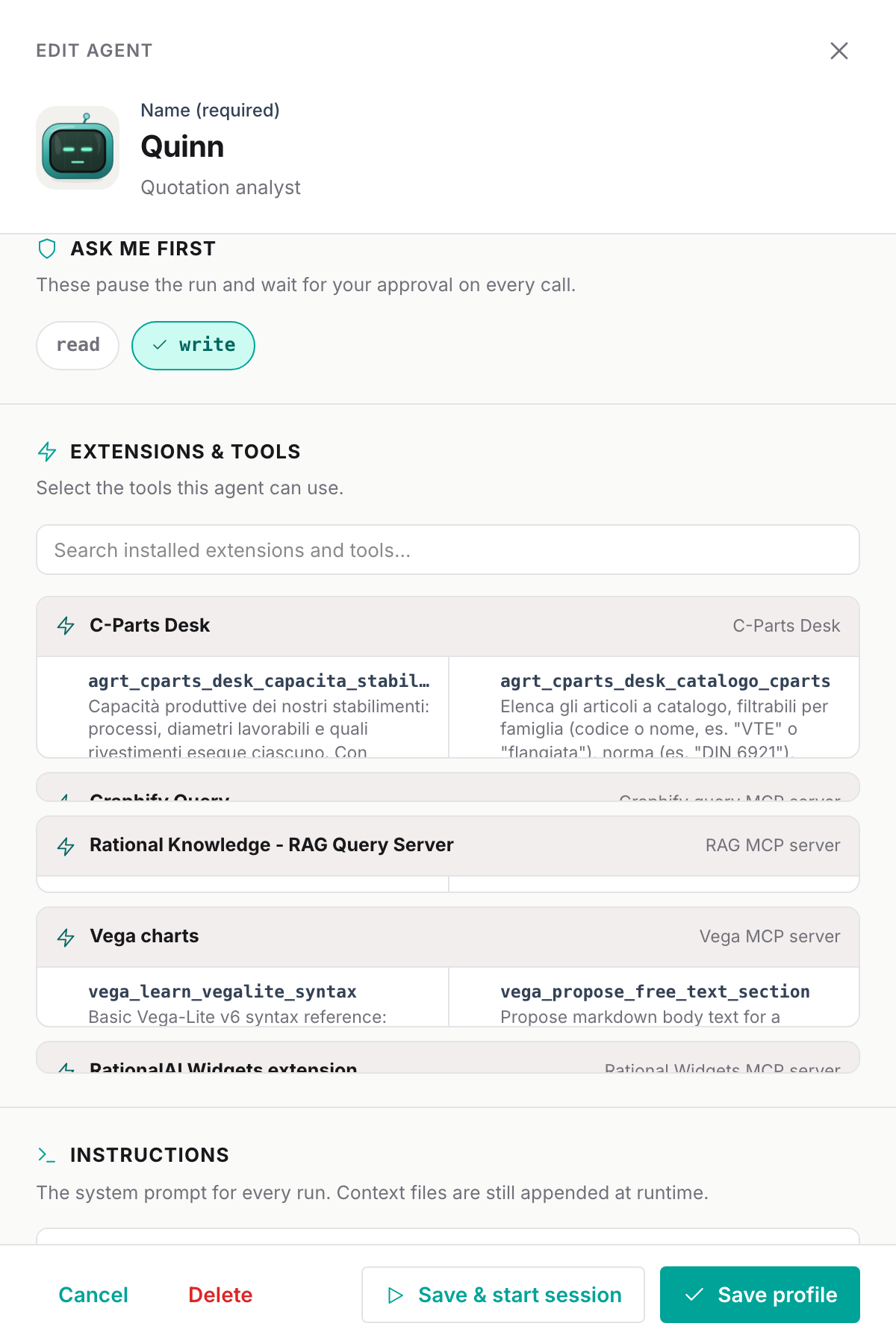
Extensions & tools lists every tool from the installed extensions, grouped by extension, with a search box and a granted count. Select the tools this agent may call. A tool whose extension still needs setup (typically a missing connector) cannot be selected until that is fixed.
Tools reach the agent under the name shown in the catalogue, <extension>_<tool>; the same name is what Ask me first matches.
Ask me first
Ask me first — "These pause the run and wait for your approval on every call." — lists every tool you granted, built-in or from an extension. Tick the ones that must wait for a person. Quinn has read and write, and write is ticked: Quinn can read and compute freely, but every file it wants to write is shown to you first.
At the bottom of the panel, a summary puts the three levels side by side:
- On its own — the tools that run without asking.
- Asks you first — the tools you ticked.
- Never — anything outside the tools above.
An agent can do anything its tools allow, as often as it decides to, on everything in its Knowledge scope. Give it only the tools the job needs, and put every tool that sends, writes or deletes under Ask me first until you have seen enough runs to trust it. See Approve what the agent wants to do.
Give it a face
Identity is purely cosmetic: it shapes the generated avatar so each agent is recognisable at a glance. Choose a Chassis (Hally, Pico, Orbit, Robo), a Colour and a Screen, then move the four sliders — Rigor changes the eyes, Autonomy the antenna, Verbosity the mouth, Creativity the sheen of the casing. None of this changes behaviour; the instructions do.
Decide what starts it
Trigger & execution — "What starts a run, whether it runs in the cloud, and whether you can steer it mid-run."
- Trigger —
manual(the default: tasks, chats and Run now),schedulefor a cron schedule, orgithubEventfor a GitHub webhook. Schedules and webhooks are covered in Schedule and trigger agents. - Where — keep
cloud: runs execute on the agent's computer in the Rational AI cloud. - Mode —
autonomousagents work through the job on their own;interactiveagents are meant to be steered with messages while they work.
A run has 20 minutes to finish. Interactive agents, and agents with at least one tool under Ask me first, get six hours, so a run can wait for a person without timing out.
Save and try it
- Create profile saves the agent. It appears on the Agents team page and in the sidebar roster.
- Create & start session saves it and opens a chat with it straight away.
Open the agent from the team page to see its profile at a glance: the model, the trigger, the mode, its computer, the system prompt, the built-in tools and the list of its runs.
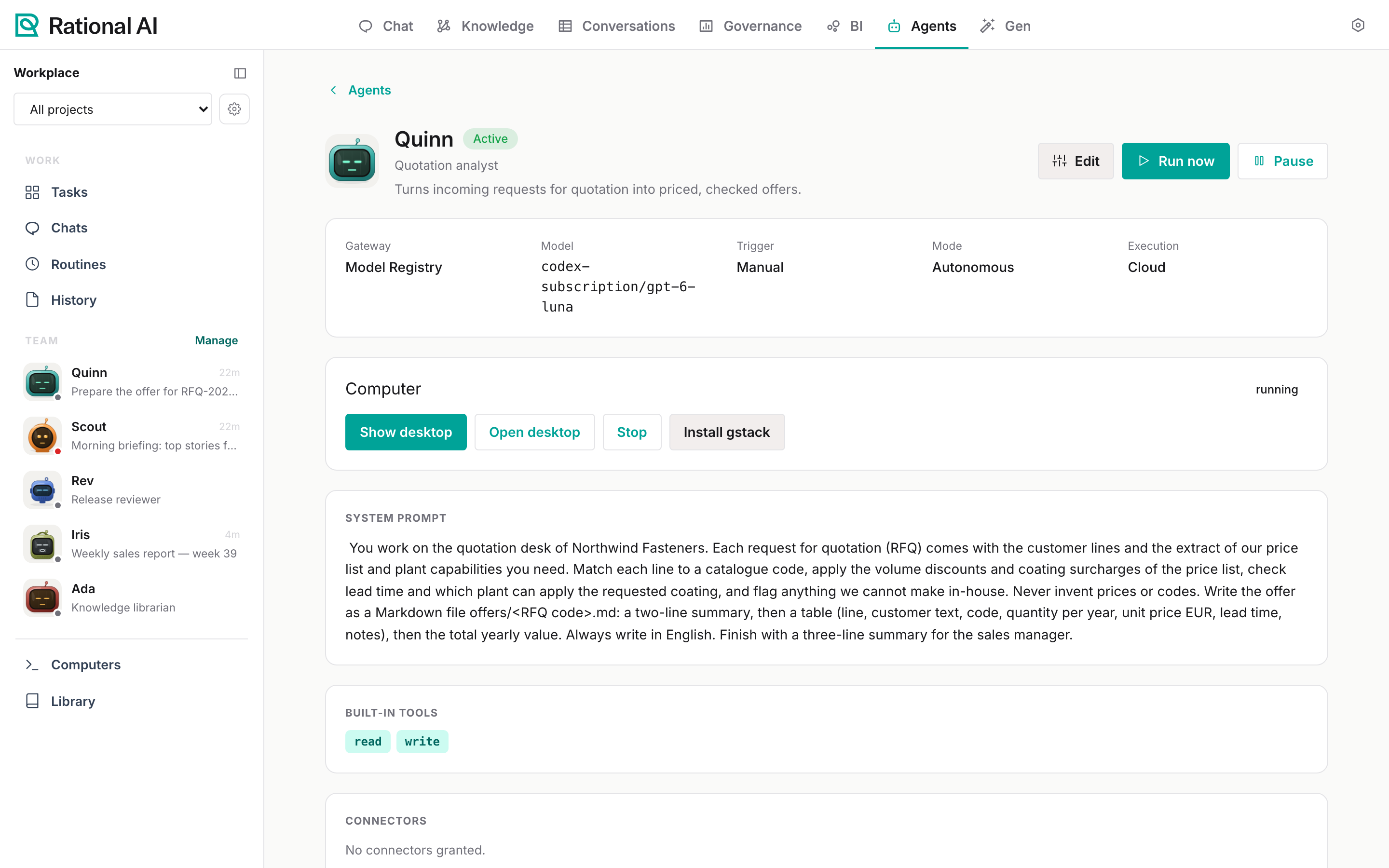
From here:
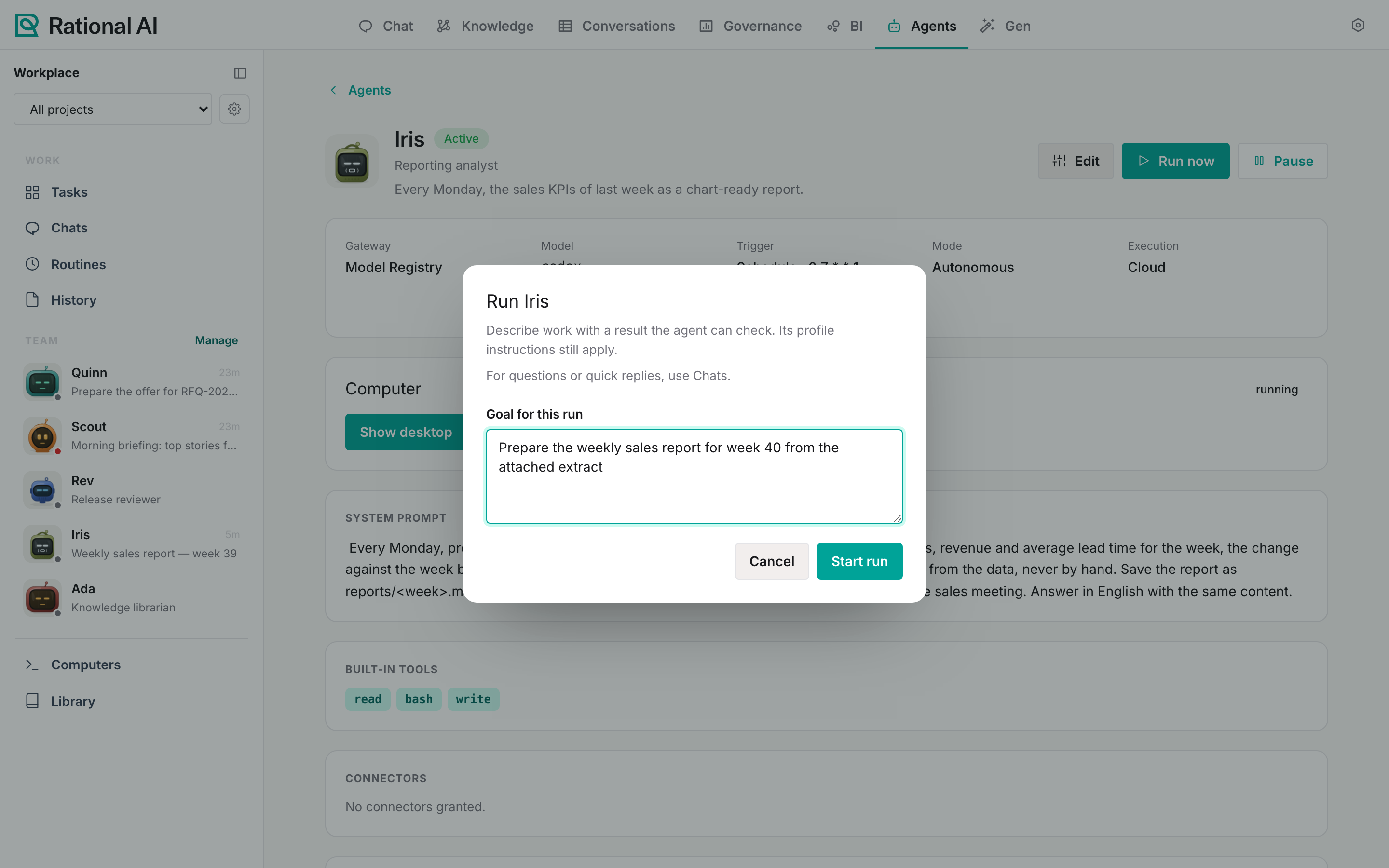
- Run now opens Run <name>. Write the Goal for this run — "Describe a concrete outcome" — and select Start run. The agent's instructions still apply; the goal is what this run must deliver. For a quick question, use a chat instead.
- Edit reopens the profile panel. Delete is at the bottom of that panel; the agent's past runs are kept for audit.
- Pause marks the agent as paused; see Pause an agent.
- Runs lists every run of this agent with Cancel for the ones still going and Retry for those that failed, were cancelled or timed out.
Troubleshooting
| Symptom | What to check |
|---|---|
| Run now is greyed out | The profile has no instructions. Open Edit and write them. |
| The run fails with "No text-generation model is available — add one to the registry first." | There is no text-generation model in the AI Model Registry. Add one, or connect a subscription. |
| The run fails with "The configured Agents default model is unavailable." | The Agents model default points to a model that was removed or withdrawn. Pick another under Default models, or set a model on the agent. |
| The agent says a tool is not available | The tool is not granted on the profile, or its extension needs setup. Check Extensions & tools in the profile and the badges in the Library. |
| Saving fails on the name | Agent names are unique. Pick a different one. |