Follow runs and approve actions
Every piece of work an agent does is a run: it starts, works through the job step by step on the agent's computer, and ends Completed, Failed, Cancelled or Timed out. The run page shows the whole thing as it happens — what the agent said, each tool it called and what came back — and it is where you answer when the agent reaches a tool it must not use without you.
This guide follows Quinn pricing request for quotation RFQ-2026-0153: Quinn computes the offer on its own, then stops before writing the offer file because write is under Ask me first.
Prerequisites
- An agent and a run — start one from a task, a chat, Run now on the agent's page, or a trigger. See Delegate work with tasks and Build an agent.
Open a run
- From a task: Open live run in the task panel.
- From the agent's page: select a run in its Runs list.
- From History or Routines: select the row.
- From a chat: View run on a message.
Read the run page
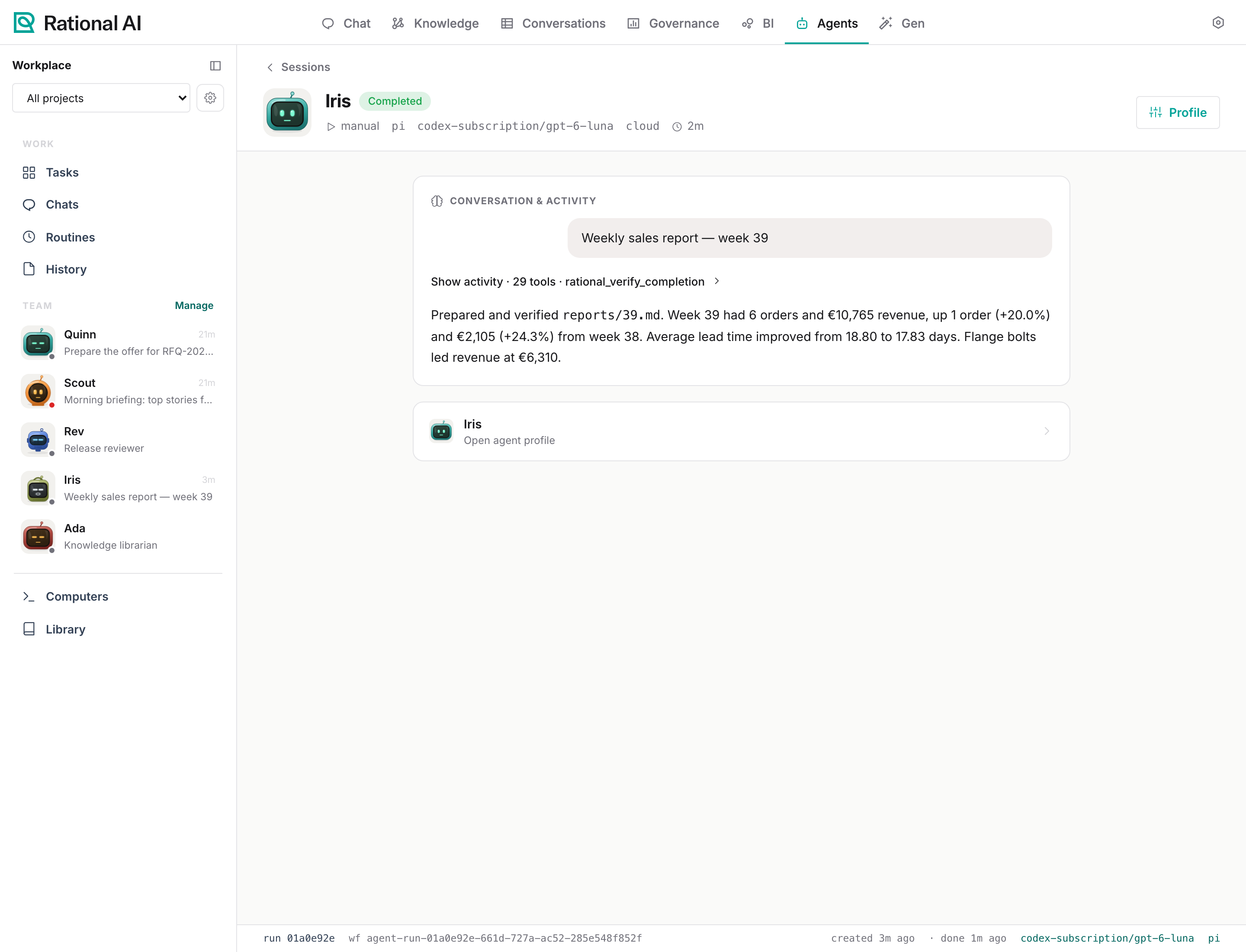
The header shows the agent, the run status and how it was started, the model, where it ran and how long it has been going. Below it, Conversation & activity tells the run in order:
- The goal you gave, as the first message.
- The activity, collapsed into one line — Show activity · 29 tools · rational_verify_completion — with the number of tool calls and the latest. While the run works the line reads Running: <tool> — <summary>. Expand it to see every step: the commands it ran, the files it read, the Knowledge it searched; expand a step to see its arguments and result.
- The agent's messages, between the activity blocks. The last one is the answer; for a task it is also posted as a comment.
- Approval cards, when the agent is waiting for you.
- Links to delegated runs, when the agent handed part of the job to another agent.
When the agent saves documents during the run, What it produced lists them, each with its version and Open.
The footer carries the run ID, the workflow ID, when it was created and finished, and the model.
Before a run can end as Completed, the agent verifies that the outcome really exists — the file is there, the numbers add up, the record was saved. The activity shows these checks as Verification steps. When the agent cannot prove the result after several attempts, the run ends Failed with "Completion could not be verified after three continuation attempts. Review the plan and evidence." and its task goes to Needs you: read the activity, adjust the task or the instructions, and retry.
Approve what the agent wants to do
When the agent calls a tool that is under Ask me first on its profile, the run pauses:
- the run status becomes Needs you;
- its task moves to Needs you with Waiting for your approval;
- the orange badge next to Tasks in the sidebar counts it;
- an approval card appears in the run and in the chat, if the run came from one.
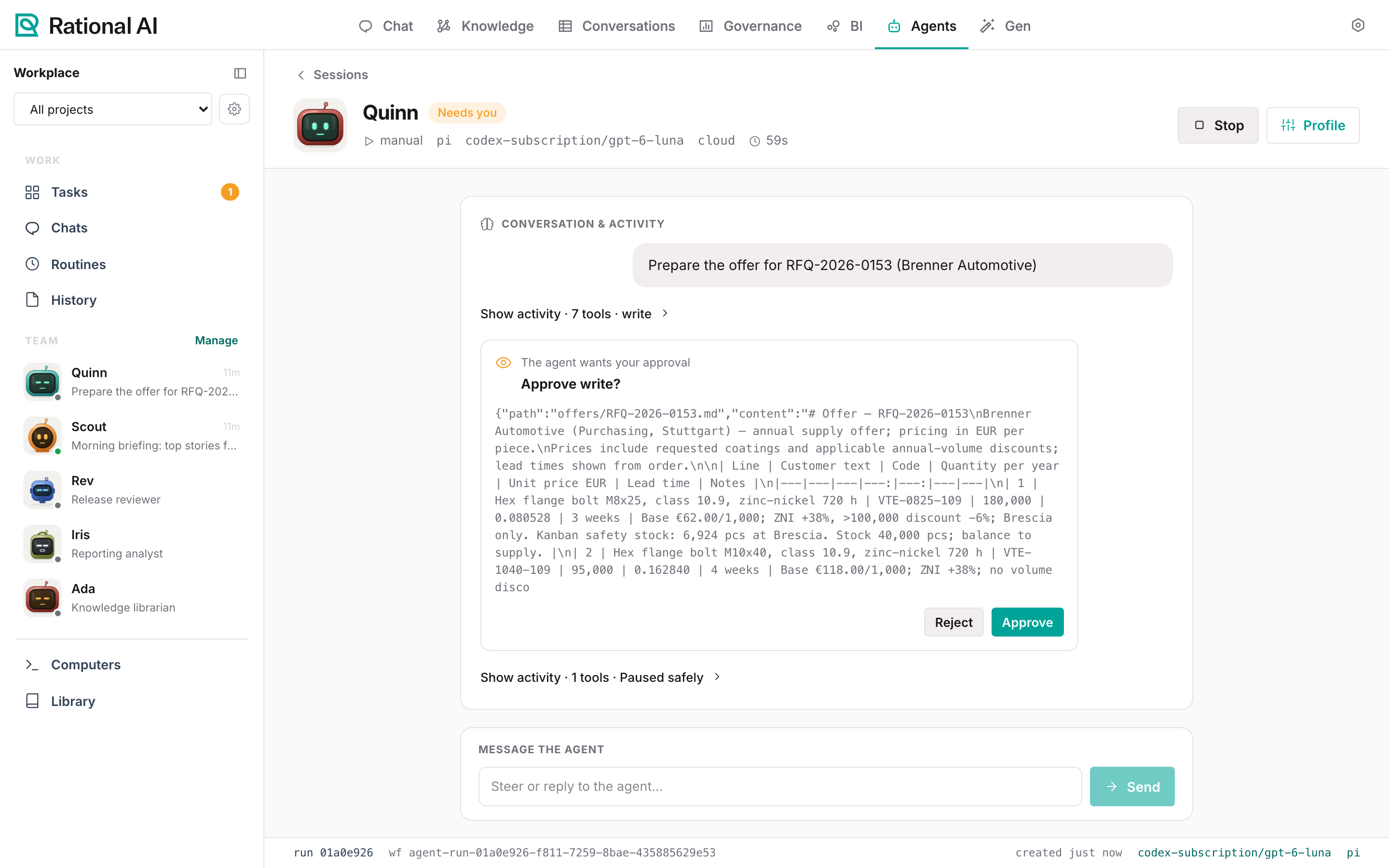
The card reads "The agent wants your approval", names the tool (Approve write?) and shows the exact arguments of the call — here the path offers/RFQ-2026-0153.md and the content Quinn wants to write, line prices included. Read them as you would read a colleague's draft:
- Approve runs the tool with exactly those arguments and the agent continues.
- Reject tells the agent no; it carries on without that call and can explain, try another way or ask you.
Either way the run goes back to Running. The agent can also stop to ask you something on its own: the card then shows its question instead of a tool name.
Anyone who can use the agent can approve or reject its calls, not only the person who started the run. An agent that waits keeps waiting: runs of agents with Ask me first tools have up to six hours before they time out.
Steer, stop or retry
- Message the agent — while a run is going, the box at the bottom (Steer or reply to the agent…) sends a message the agent reads at its next step: add a detail, correct the direction, answer a question. Only the person who started the run can message it.
- Stop — ends the run. The agent's computer confirms the stop; the run ends Cancelled and its task goes to Needs you.
- Retry — for a run that failed, was cancelled or timed out. It starts a new run with the same goal; the old one stays in the history.
- Profile — opens the agent's profile.
Look back in History
Agents → History lists every run, newest first: when it started, the goal, the agent, how it was started, the model and the outcome.
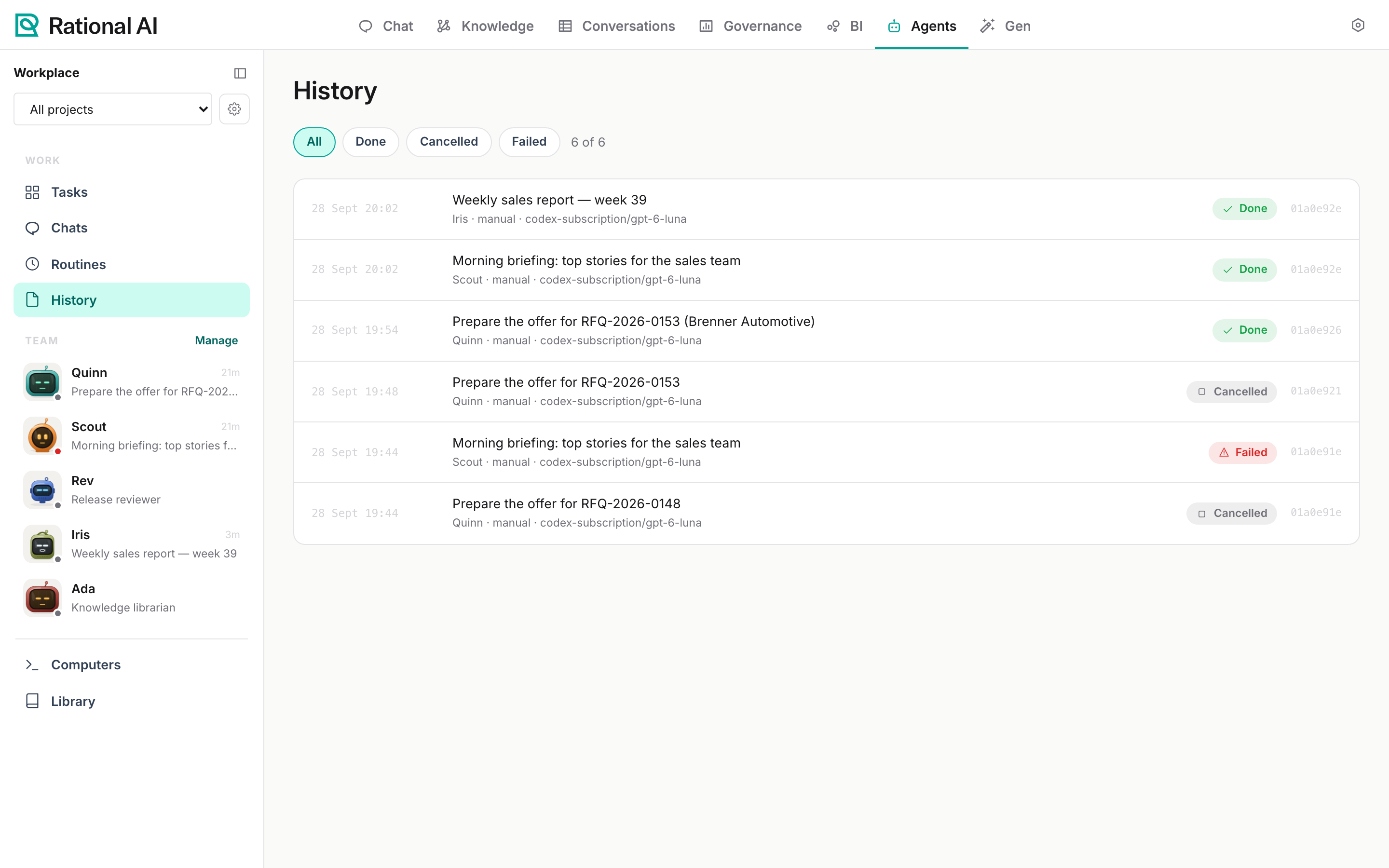
Filter by outcome with the chips at the top (All, Done, Failed, Cancelled, and any other outcome that occurred) and open a row to see the run. History shows the latest 200 runs.
| Status | Means |
|---|---|
| Queued | Waiting for the agent's computer; runs of the same agent go one at a time. |
| Running | Working. |
| Needs you | Waiting for an approval or an answer. |
| Retrying | A step failed and is being tried again. |
| Done / Completed | Finished with a verified result. |
| Failed | Ended with an error, or without a verified result. |
| Cancelled | Stopped by someone. |
| Timed out | Ran out of time. |
| Skipped | A scheduled run that did not start because the previous one was still going. |
Troubleshooting
| Symptom | What to check |
|---|---|
| The run stays Queued | The agent's computer is busy with another run of the same agent, or is starting. Check it on Computers. |
| The run ends Failed with a verification message | The agent could not prove the result. Make the goal checkable (a file, a record, a precise answer) and retry. |
| The run ends Timed out | The job did not fit in the run's time. Split it into smaller tasks, or put the approvals it needs under Ask me first so the run gets the longer limit. |
| Stop reports "Cancellation was not confirmed by the runtime…" | The computer did not confirm in time. Wait a few seconds and check the status again. |
| No Message the agent box | The run is no longer active, or it was started by someone else. |