Delegate work with tasks
A task is a piece of work you hand to one or more agents and want to see finished: "Prepare the offer for RFQ-2026-0153", "Weekly sales report — week 39". The Tasks board shows every task in one of four columns, moves them on its own as the agents work, and brings to the front the ones that need you. This guide covers the board, the task itself and the projects that group tasks together.
A task is the what; a run is one attempt at doing it. Starting a task opens a run with its first assignee, and the run's progress drives the task: while the run works the task is Working, when it needs an approval or fails the task goes to Needs you, when it completes the task goes to Done and the agent's final answer is posted on it as a comment.
Prerequisites
- At least one agent — see Build an agent. A task needs at least one agent on it.
Read the board
Open Agents → Tasks.
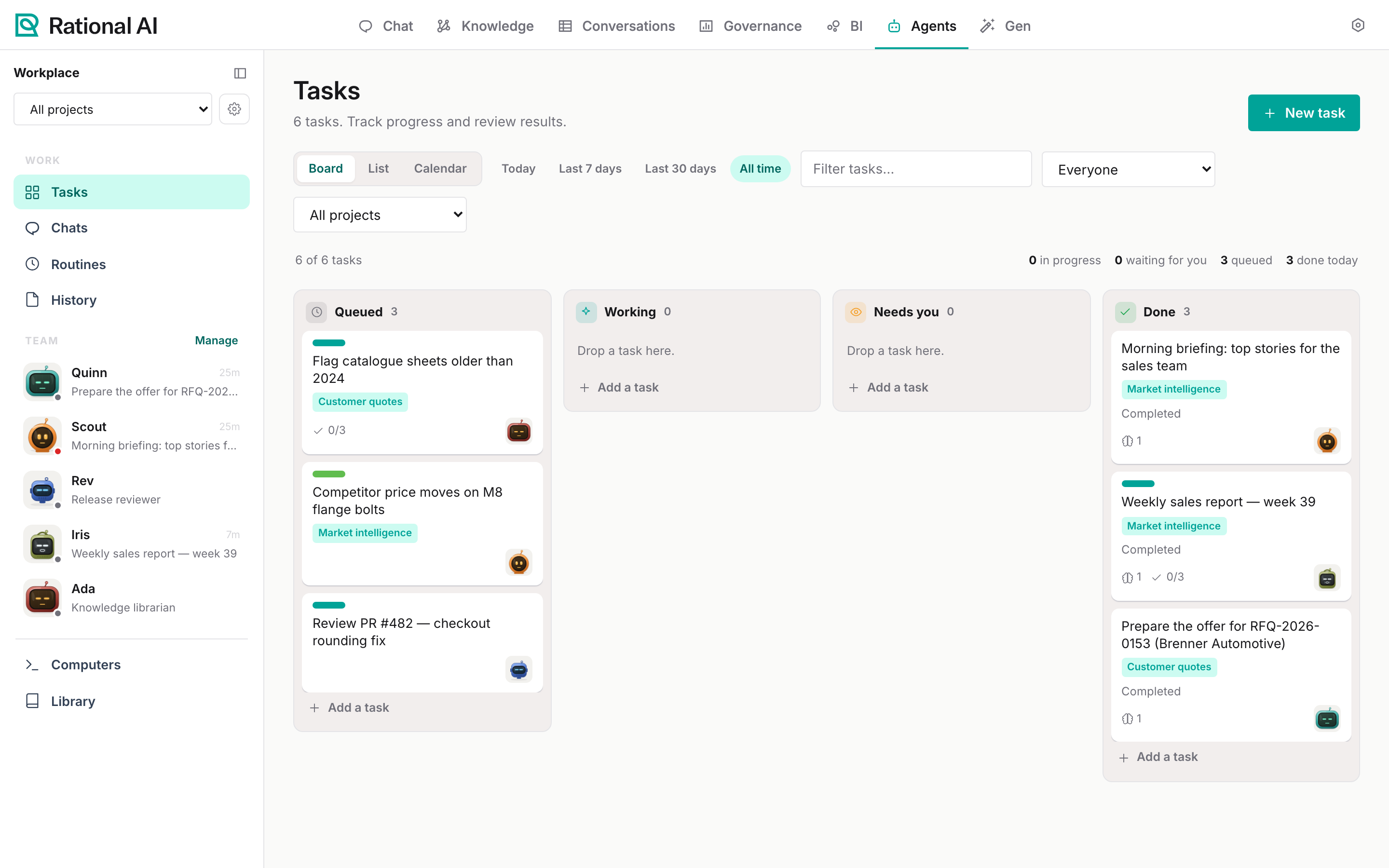
| Column | Means |
|---|---|
| Queued | Waiting to be started. New tasks land here. |
| Working | A run is going. The card shows what the agent is doing (Agent is working, Waiting to run) and its progress. |
| Needs you | The agent is waiting for your approval (Waiting for your approval), or the run ended without a verified result and the card says why. |
| Done | Completed. The agent's answer is in the task's comments. |
Each card shows the task name, its project, the subtasks done out of the total, the comment count and the avatars of its agents. Above the board, a line counts what is in progress, waiting for you, queued and done today; the orange badge next to Tasks in the sidebar counts the runs waiting for an approval.
To narrow the board, use the time range (Today, Last 7 days, Last 30 days, All time), Filter tasks…, the agent filter (Everyone or one agent) and the project filter. List shows the same tasks as a table you can group (by status, project, assignee), sort and filter by due date; Calendar opens the schedule view described in Schedule and trigger agents.
Create a task
- Select New task.
- Under What needs doing, write the title on the first line and the details on the following lines. Put everything the agent needs to deliver a checkable result: the input, the expected output, the constraints.
- Choose a Project (optional).
- Under Assignees, pick one or more agents. The first one is the one that starts the work.
- Tick Start immediately with the first selected agent to start right away; otherwise the task waits in Queued.
- Select Create task.
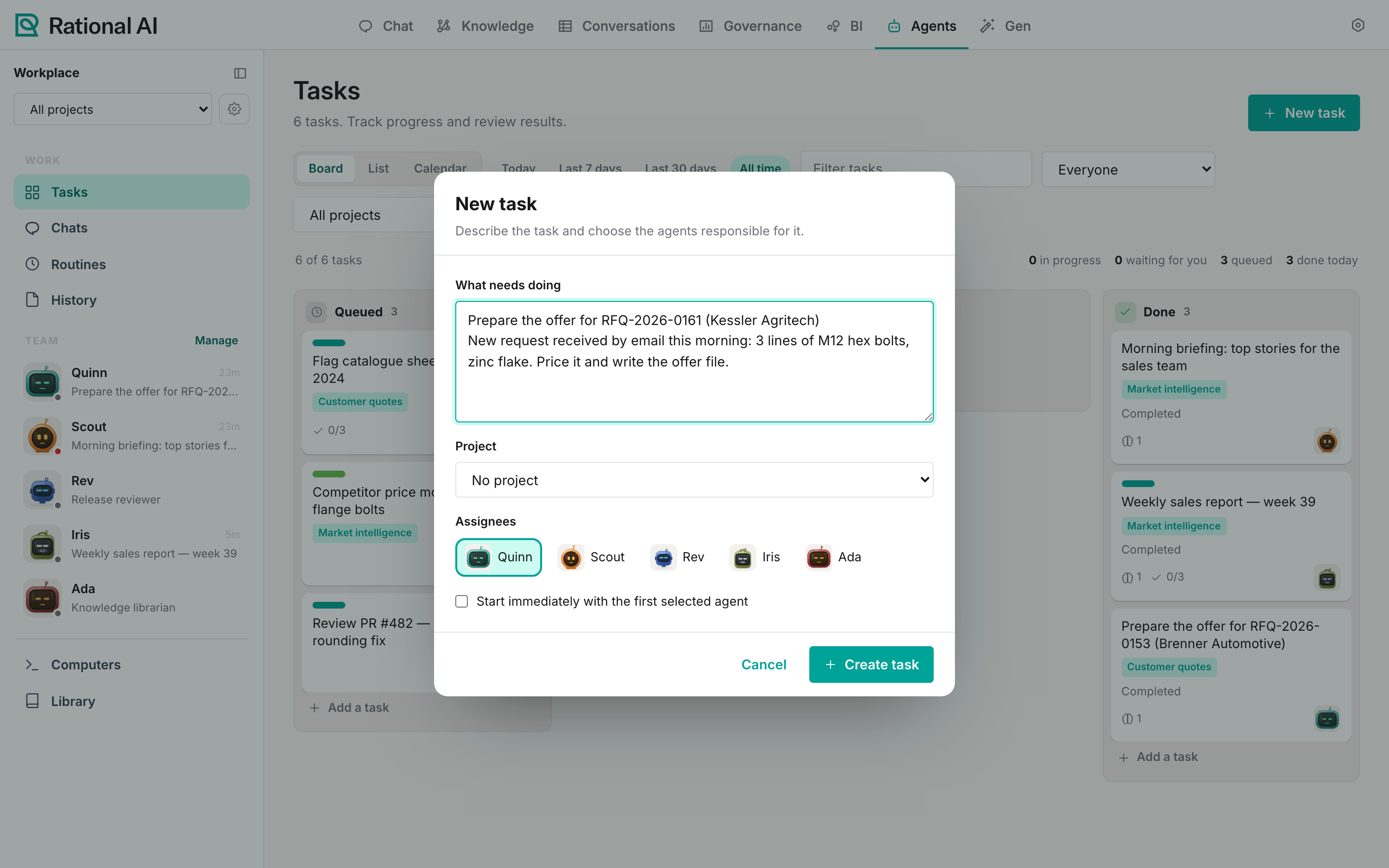
For a quick one, use Add a task at the bottom of any column: type What needs doing?, pick an agent and select Add.
Tasks get a short key (RA-1, RA-2, …) that never changes and is never reused. Agents can also open tasks themselves, for example a librarian agent that files one task for each outdated sheet it finds; those land in Queued.
Start and move tasks
- Drag a card to another column, or reorder it within its column. Dragging a task to Working starts a run with its first assignee.
- In the task, select Start with <agent>, or one of the Move to … buttons.
If the agent cannot be started (no model, missing permissions), the task goes to Needs you with "Could not start the assigned agent. Check permissions, model and workflow availability, then retry."
Work inside a task
Select a card to open it.
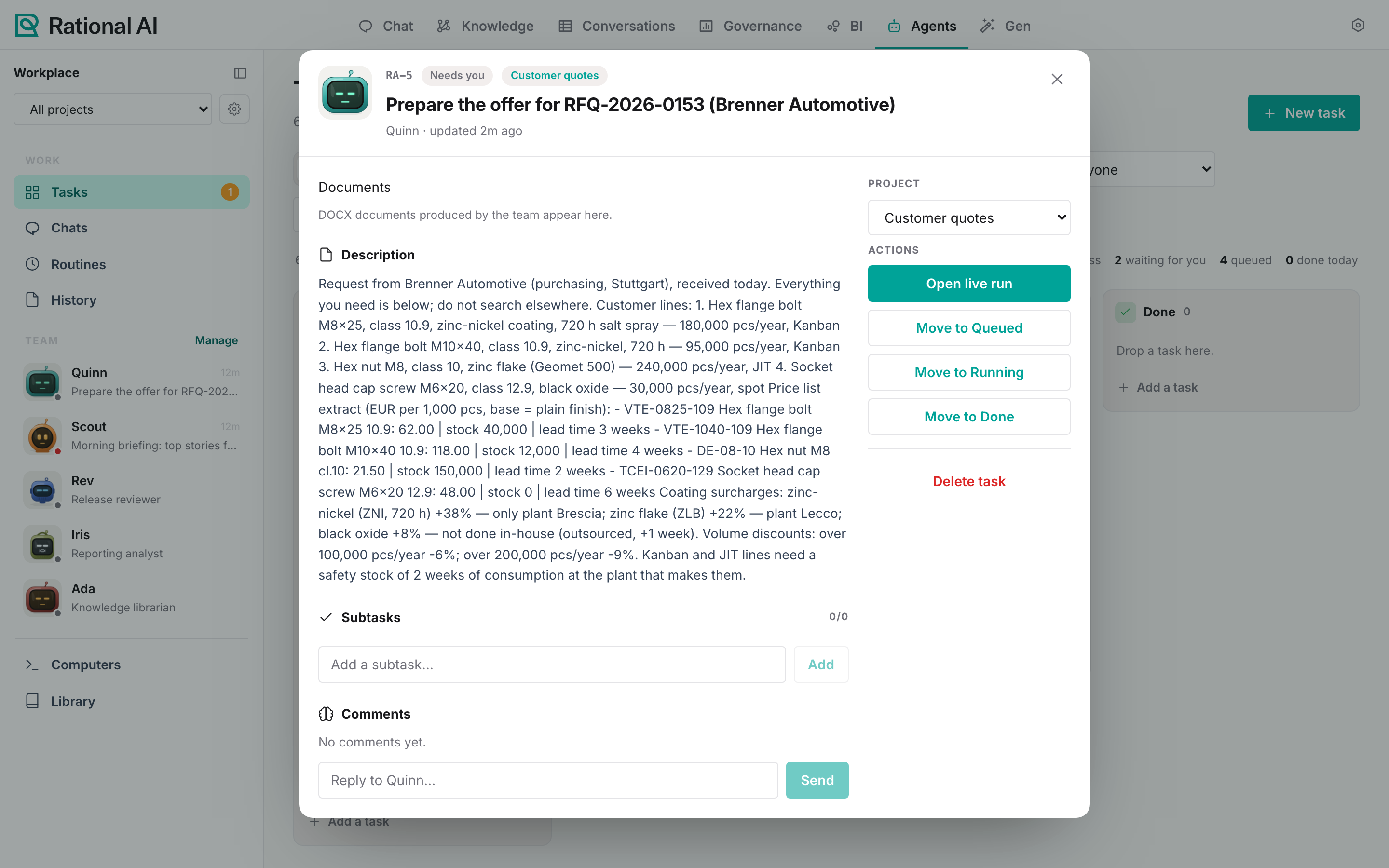
- Description — what you wrote when you created it.
- Subtasks — a checklist with a progress bar; Add a subtask… and tick them off as they are done.
- Comments — the conversation on the task. When a run completes, the agent's final answer is posted here; you can reply to the agent with Reply to <agent>….
- Documents — Word documents the agents produced for this task, with their version and review state (Agent-reviewed, Review outdated, Not reviewed). Select one to edit it in the browser and Save, or Download it. Editing requires the Office integration to be enabled on your installation.
- Project — move the task to another project, or leave it Unassigned.
- Actions — Open live run while a run is going (see Follow runs and approve actions), Start with <agent> otherwise, the Move to … buttons and Delete task.
Delete task removes the task immediately, without a confirmation. The runs it started stay in History.
Group tasks in projects
A project collects related tasks, and optionally points to the Knowledge base they are about. Open it from the gear next to the project picker, or go to Agents → Projects.
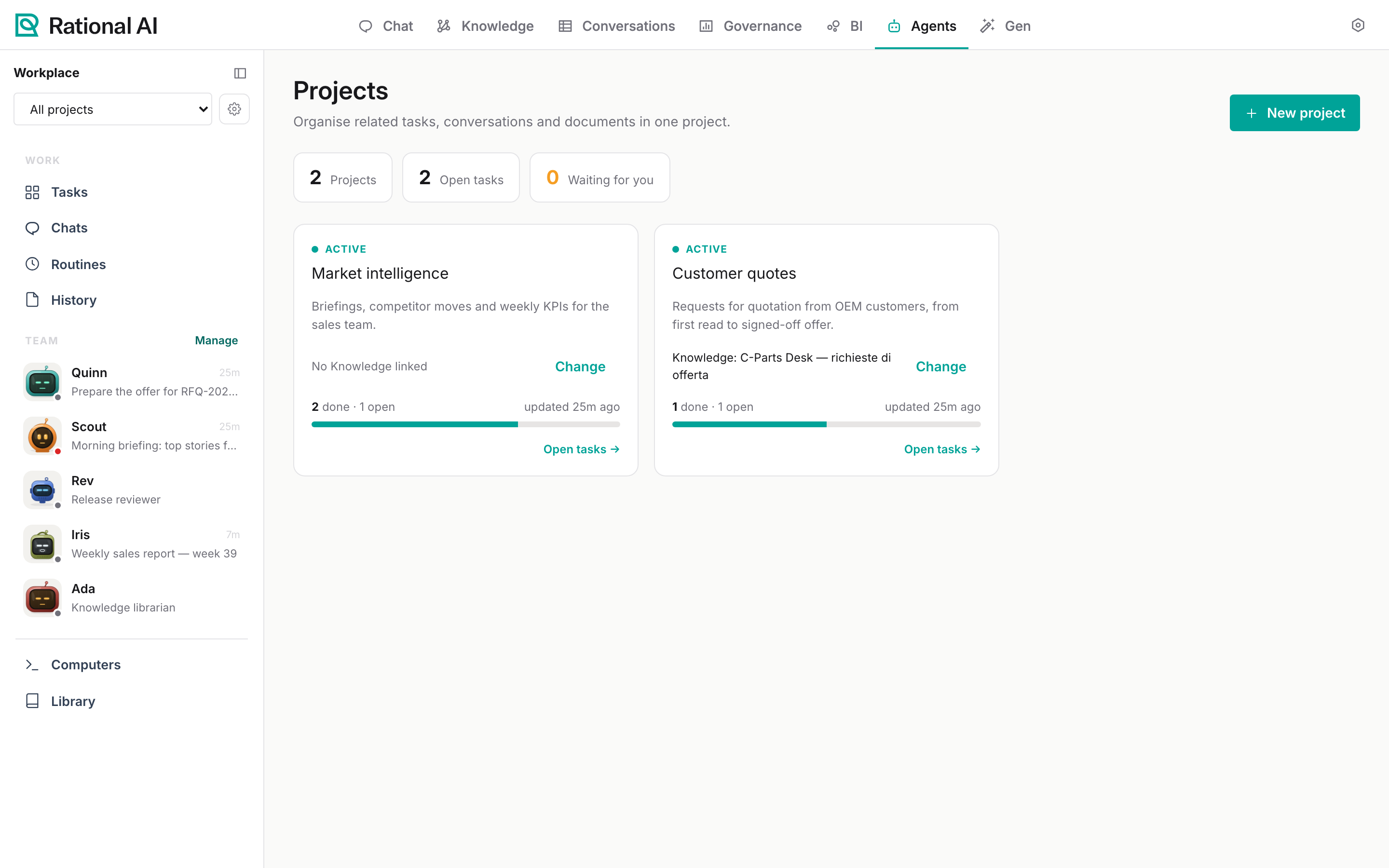
- Select New project. Give it a Name, a Description and, optionally, a Knowledge base.
- Select Create project.
Each card shows how many tasks are done and open, how many need you, and the linked Knowledge; Change links a different one and Open tasks → opens the board filtered to that project. Selecting a project in the sidebar picker does the same for the whole section.
Agents projects are separate from Rational BI projects.
Linking a Knowledge base to a project documents what the project is about and shows it on the card. What an agent can actually search and change is set on its profile, under Knowledge access. When a project's agents should work on its Knowledge, grant that base on their profiles too.
Who sees a task
A task is visible to everyone who can see at least one of the agents assigned to it.