Fine-tune a model with your own data
Fine-tuning takes a general-purpose AI model and trains it further on your own examples, so it gets noticeably better at the specific tasks you care about. This guide walks you through the whole process end to end: assembling your training data as a dataset, then launching a fine-tuning run and using the result.
A base model is a general, pretrained AI model (see LLMs) that already knows a lot but nothing about your particular use case. Fine-tuning nudges that base model toward your data by showing it more examples. Those examples live in a dataset — a collection of inputs and the outputs you'd like the model to produce. In Rational AI this is a two-part job: you build a dataset under Datasets, then train on it under Fine-Tuning.
Prerequisites
Before you start, make sure you have:
- Administrative access: an account with permission to reach the Settings area.
- A base model available: at least one model you can train from, visible in the AI Model Registry.
- Training examples ready: either a dataset file to upload, or recorded traffic and events you can build a dataset from.
Create a dataset
A dataset is the training data your fine-tuning run will learn from. You manage datasets under Settings → Datasets, where the table lists each one by Name, Format, Entries, Created at, Updated at, and Current version.
Datasets are versioned: you can edit the data and create new versions later, so you're never locked into your first attempt.
To start, select New. The menu offers several ways to build a dataset.
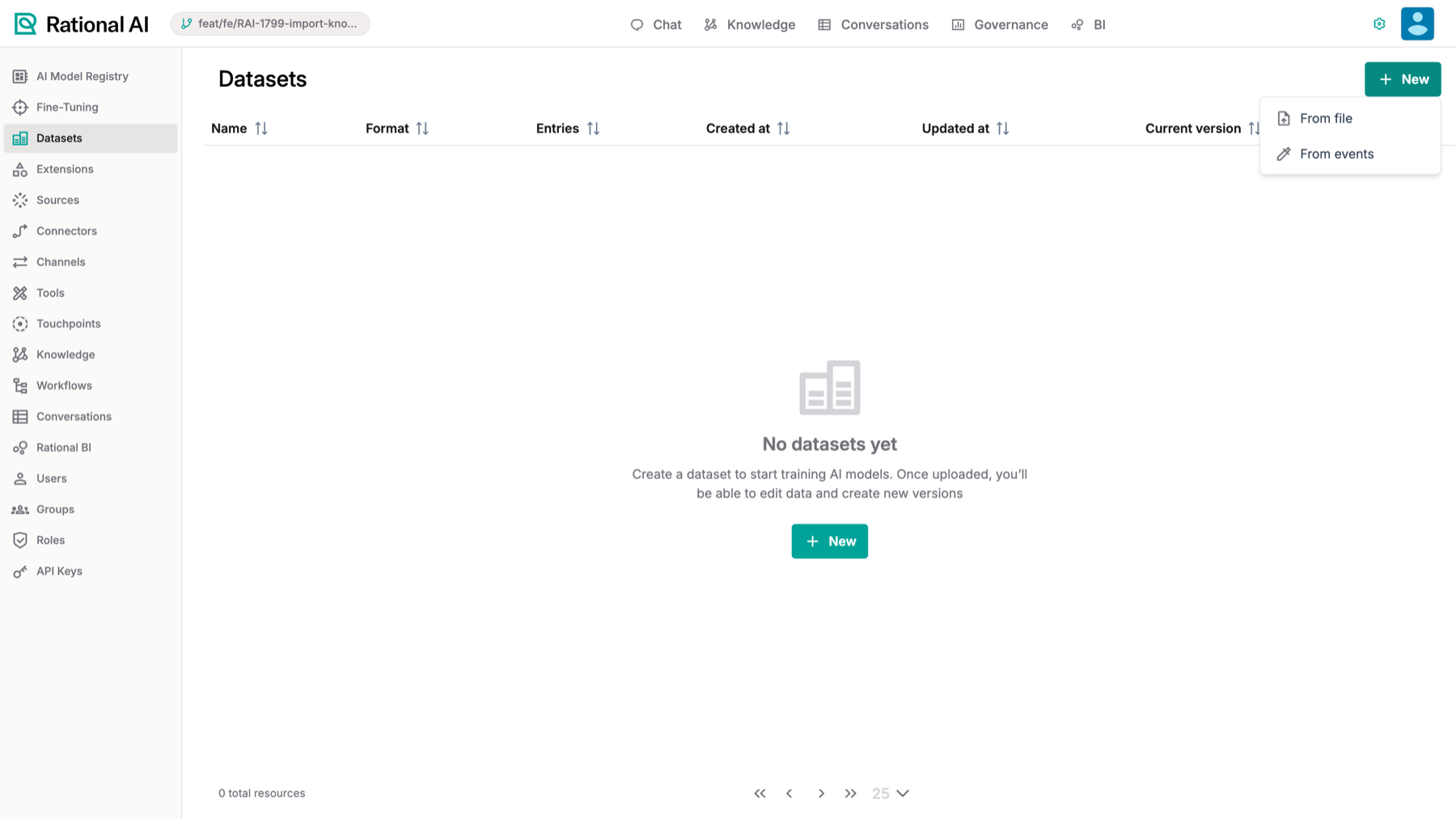
Creating a dataset: upload a file, or build one from activity Rational AI has already captured.
From a file
Choose From file when you already have your examples prepared as a dataset file. Upload the file, and Rational AI reads its entries into a new dataset. This is the most direct path if your data was exported from another tool or assembled by hand.
From recorded traffic
This is the option to reach for when you want to fine-tune the thing this product actually runs: an agent.
Every chat completion that goes through the proxy is recorded as the conversation the model actually saw — including the system prompt, the tool calls it made, and what those tools returned. Building a dataset from that captures the agent's real behaviour rather than an approximation of it.
Filter down to the examples you want with the fields you can actually answer:
- Touchpoint — which agent's traffic.
- Model — which model produced it.
- Date range.
- Successful calls only — exclude the ones that errored.
The counts update as you type: how many requests match, how many will become training examples, and how many are held out. You can see the size of what you're about to create before you create it.
Entries copy the content they were built from rather than pointing at it. Captured request bodies have their own retention clock, and a dataset whose examples vanished on the next sweep would not be a dataset.
So building a dataset from recorded traffic is also a way of preserving those specific examples past your retention window — worth knowing in both directions.
From events
From events builds a dataset out of room events — the text of each turn. It works without any proxy traffic, so it's the option for a tenant that doesn't have any.
Its limitation is worth knowing before you choose it: an event carries the text of a turn and nothing else — no system prompt, no tool call, no tool result. If you're fine-tuning an agent that uses tools, this source cannot express the behaviour you're trying to teach. Use recorded traffic where you have it.
Curate a dataset
A dataset built from real traffic will contain examples you don't want to train on. Open one and its entries are rendered as the conversations they are — tool calls shown as name(arguments) rather than raw JSON — each carrying a chip showing whether it's a training or held-out example.
- Removing an example is a single action from the example itself. Most curation is removal, so it's the quick one.
- Correcting one opens it as JSON. The shape differs by format, and a form modelling only some formats would silently drop whatever it didn't recognise.
- A format that genuinely can't be edited says so, rather than accepting an edit and quietly discarding it.
Every dataset is split into training examples and held-out ones. The held-out set is never trained on — it's what the run is scored against, so the score reflects performance on examples the model has genuinely never seen.
The split is assigned when the dataset is created, so it's reproducible, and it's interleaved rather than taken as a block from one end — holding out only your oldest or newest traffic would evaluate against a skewed sample.
Earlier releases recorded which split an entry belonged to and then trained on the whole dataset anyway. A model scored on examples it was trained on reports a number that tells you nothing — which is the exact failure a split exists to prevent.
The two halves are now fetched separately and the held-out set is handed to the trainer as its evaluation set. If you're comparing a new run against one from before this change, the old evaluation numbers aren't a valid baseline. Re-run it if the comparison matters.
Start a fine-tuning run
With a dataset in place, go to Settings → Fine-Tuning. The table here lists your runs by Name, Base model, Training dataset, and Created at.
Select New to open the New fine-tuning dialog, then fill it in:
- Enter a clear Name and a short Description so your team can tell runs apart later.
- Pick a Base model — the existing model you want to train further.
- Select a Dataset — the training data the model will learn from.
- Review the training and adapter parameters (explained below), then select Launch.
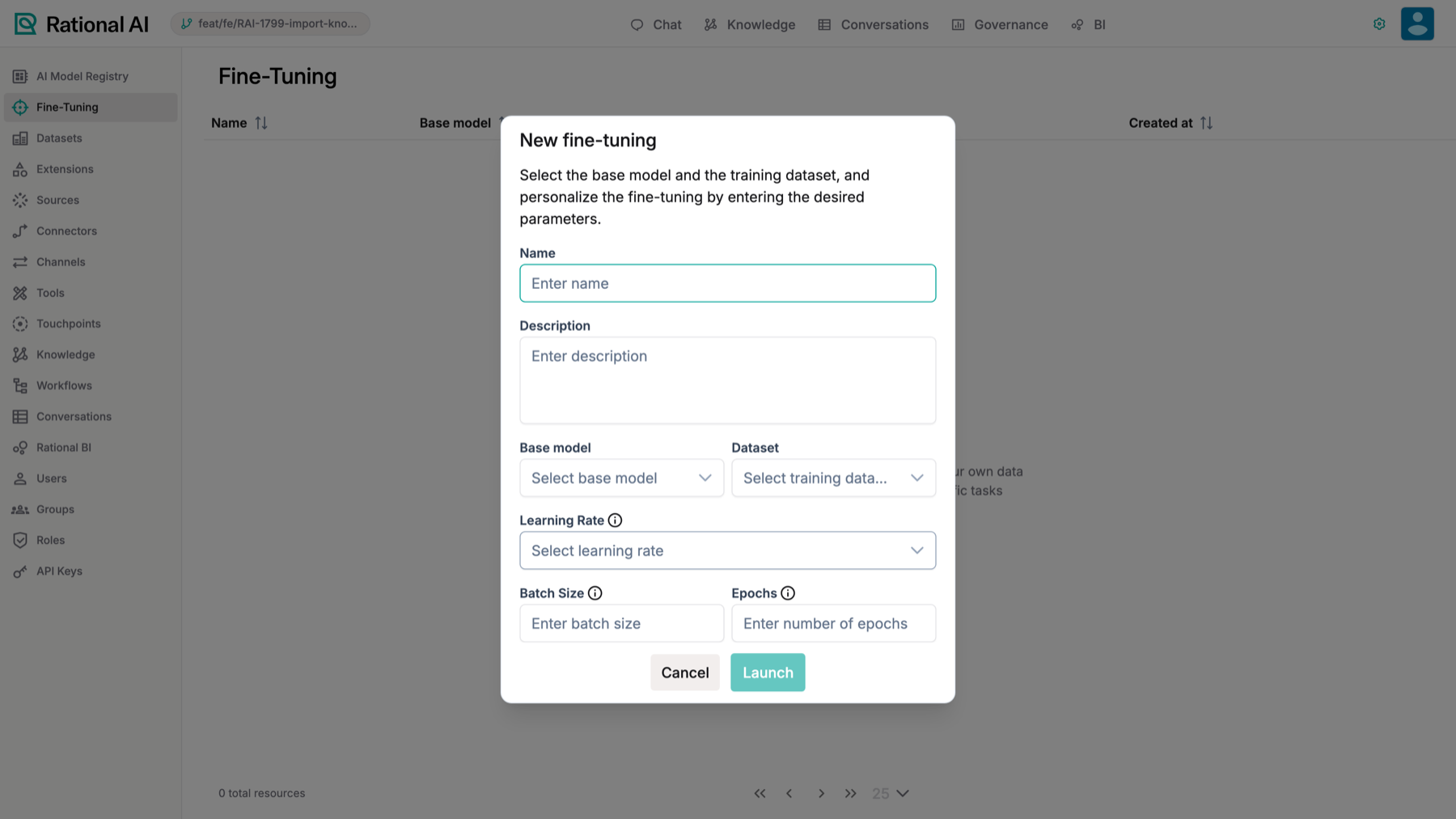
Starting a fine-tuning run: pick a Base model and a Dataset, set the training parameters, then Launch.
Training parameters
These settings control how the training runs:
- Learning Rate: how big an adjustment the model makes at each step. Too big and it overshoots; too small and it barely learns.
- Batch Size: how many examples the model looks at before each adjustment.
- Epochs: how many full passes the run makes over the whole dataset. A run is bounded by epochs rather than by a fixed number of steps, so doubling your dataset gives you the same number of passes over it rather than half.
Adapter settings
Fine-tuning here trains a small adapter on top of the base model rather than rewriting the whole thing. Three settings control the adapter's capacity, and they're the ones to reach for when a run is underfitting — learning too little from your data:
- Rank: how much capacity the adapter has. The main dial. Raise it when a run isn't learning enough from your examples.
- Alpha: how strongly the adapter's contribution is scaled. Set only the rank and alpha follows it automatically, which is usually what you want.
- Dropout: how much regularisation is applied during training, to keep the adapter from simply memorising your examples.
Every parameter ships with a sensible default, and launching without touching any of them gives you a reasonable run. Change one when you have a specific reason and a first result to compare against.
If you do need to intervene, the rule of thumb is that the training parameters shape how the run proceeds, while the adapter settings are what change how much it can learn at all. A run that plateaus early is usually a rank problem, not a learning-rate one.
Two things you don't set, and shouldn't have to:
The conversation template follows your base model. Training a Llama or Mistral base uses that family's own markers rather than another family's — a mismatch here trains the model on tokens it never sees at inference and fails silently, producing a run that completes and a model that doesn't work. An unrecognised family keeps its own tokenizer's template rather than borrowing one.
Quantisation follows the model size. It stays off where full precision fits, since quantising costs quality, and switches on above that — where the alternative isn't a slower run but no run at all, because the weights don't fit on the cards.
Watch a run
Training takes a while, and a job that reports nothing but "running" is impossible to make decisions about. The run's drawer shows what it's actually doing, polling while the run is live:
- Progress through the run.
- Loss — updated as training proceeds. Because the run is evaluated against the held-out split, you can see overfitting while it's still happening: training loss falling while held-out loss flattens or rises is the signal to stop.
- Elapsed time.
- The failure reason, if it fails — rather than a run that simply stops.
Cancel stops a running fine-tuning. That's also what frees the GPUs, so cancel a run you've already learned from rather than letting it finish out of politeness.
Run status is reconciled by reading the job back from the cluster, so a restart mid-training doesn't leave a run showing "training" forever with weights that never register. If you have runs stuck in that state from an earlier release, they're the symptom of that old behaviour rather than something still happening.
Use your fine-tuned model
When the run finishes, Deploy makes the fine-tuned model available in the AI Model Registry alongside your other models — the same thing the registry's Install your own fine-tuned model option points to. From there you can activate it and use it like any other model in Rational AI.
Related
- Manage AI models in the registry — where a deployed model lands.
- Monitor usage and cost — the recorded traffic a dataset can be built from.
Result
You've assembled a dataset — ideally from recorded traffic, so tool calls and system prompts survive into training — curated out the examples you didn't want, and launched a run whose parameters are actually applied. You can watch its loss against a genuinely held-out split, stop it when it stops improving, and deploy the result into the model registry. To keep improving it, curate the dataset and launch another run.