Browse the tools your agents can use
Settings → Tools is the catalog of everything an AI agent can do beyond chatting — search a knowledge base, run a read-only query, fetch a document, and more. This page is a reference: it shows you what's available and where each capability comes from.
A tool is a single capability the AI can invoke during a conversation — one specific action like "search the knowledge base" or "fetch a document." Tools come from extensions, the add-ons you install. Each extension runs an MCP server (MCP is the open standard for connecting AI agents to external tools), and that server is what publishes the tools you see here.
Browse available tools
Go to Settings → Tools. The page is a searchable list of every tool currently available in your environment, grouped by the MCP server (the extension) that provides it. For example, the RAG MCP server is marked Default because it ships with Rational AI.
Each row shows:
- Name: the tool's identifier, for example
rag_query_simple. - Description: a short explanation of what the tool does and when the AI would call it.
- ⋮ menu: per-tool actions.
Use the search box at the top to filter by name or description when the list grows long.
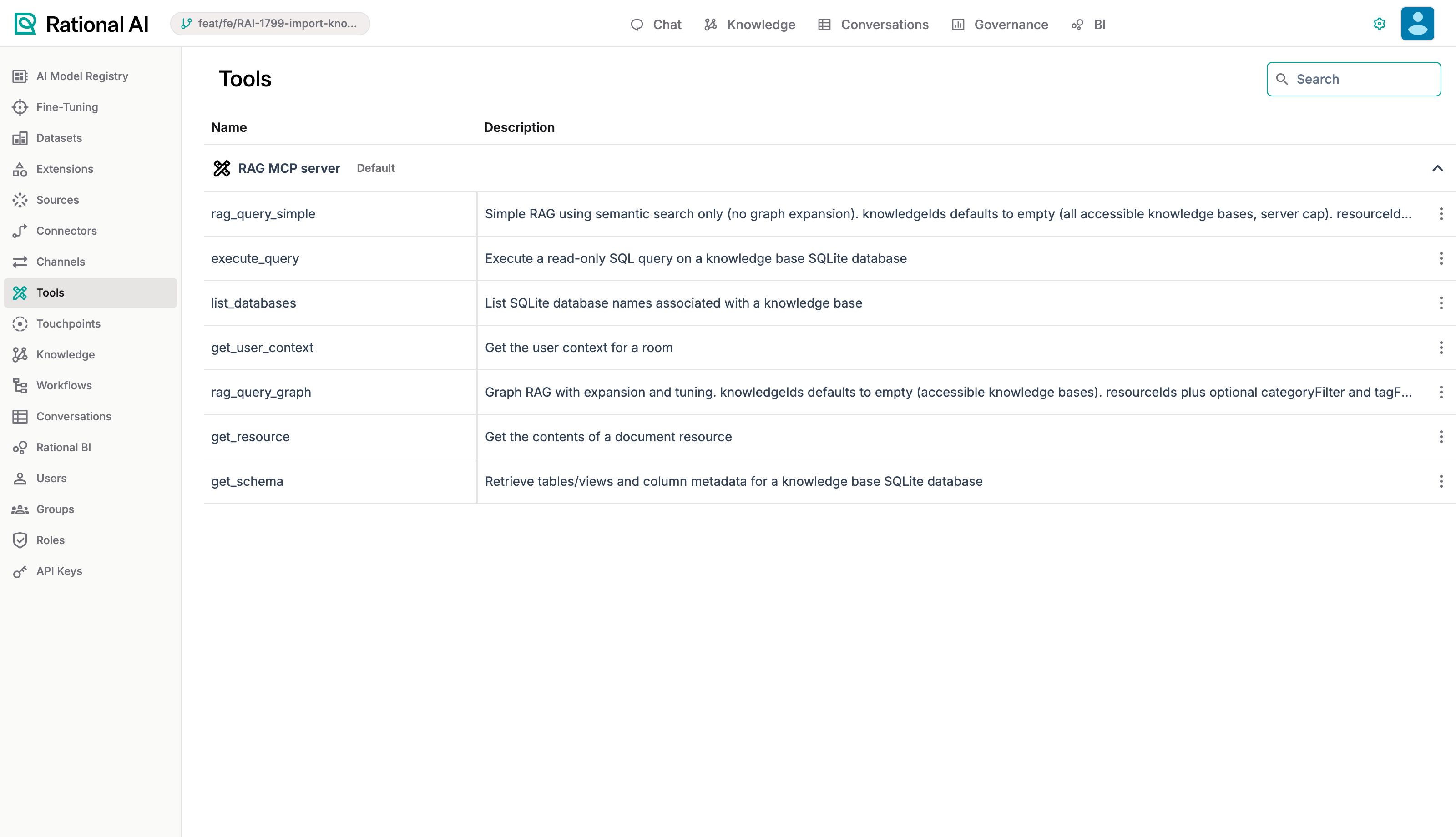
The Tools registry: every tool available to your agents, grouped by the MCP server (extension) that provides it.
The RAG MCP server alone provides several tools you'll see often:
- rag_query_simple — simple semantic-search RAG (finds passages similar in meaning to the question).
- rag_query_graph — graph RAG with expansion (follows links between related pieces of knowledge).
- execute_query — runs a read-only SQL query against a knowledge base's SQLite database.
- list_databases — lists the databases available in a knowledge base.
- get_schema — returns the structure (tables and columns) of a database.
- get_resource — fetches the contents of a specific document.
- get_user_context — provides the AI with context about the current user.
Where tools come from
Three pieces work together, and it helps to keep them straight:
- Extensions provide tools. Installing an extension adds its MCP server's tools to your environment. To install or remove extensions, see Manage extensions.
- This Tools page is where you see them. It's the full inventory of what's available, no matter which agent ends up using it.
- A touchpoint is where you choose them. A touchpoint is the configuration for a specific agent, and that's where you pick which of these tools the agent is actually allowed to call.
A tool appearing in this catalog means it exists in your environment, not that any agent is using it. An agent can only call a tool once you grant it in that agent's touchpoint.
Declared tools and discovered tools
There are two moments at which you can see what an extension offers, and they don't mean quite the same thing.
- Declared tools are what the extension's manifest promises. They're visible on the extension itself as soon as it's installed, even before you've configured anything and before any server has started — useful for deciding whether an extension is worth setting up.
- Discovered tools are what a running MCP server actually reports. They're what lands in this catalog, and the list refreshes whenever a configuration starts or restarts.
Updating an extension doesn't restart its servers, so this catalog keeps showing the tools the server last reported until the next restart. That's deliberate: your touchpoint wiring survives the update untouched, and tools that no longer exist are pruned at the next rediscovery instead of vanishing mid-flight. See Update and roll back extensions for the full timing.
Result
You know where to find every tool your agents can use, how to tell which extension provides each one, the difference between what an extension declares and what its running server actually serves, and where to go next to actually grant a tool to an agent.