Configure data sources
A data source is where Rational AI goes to fetch content. Once you connect one to a Knowledge — the searchable collection of documents your AI answers from — Rational AI can pull that content in and keep it up to date.
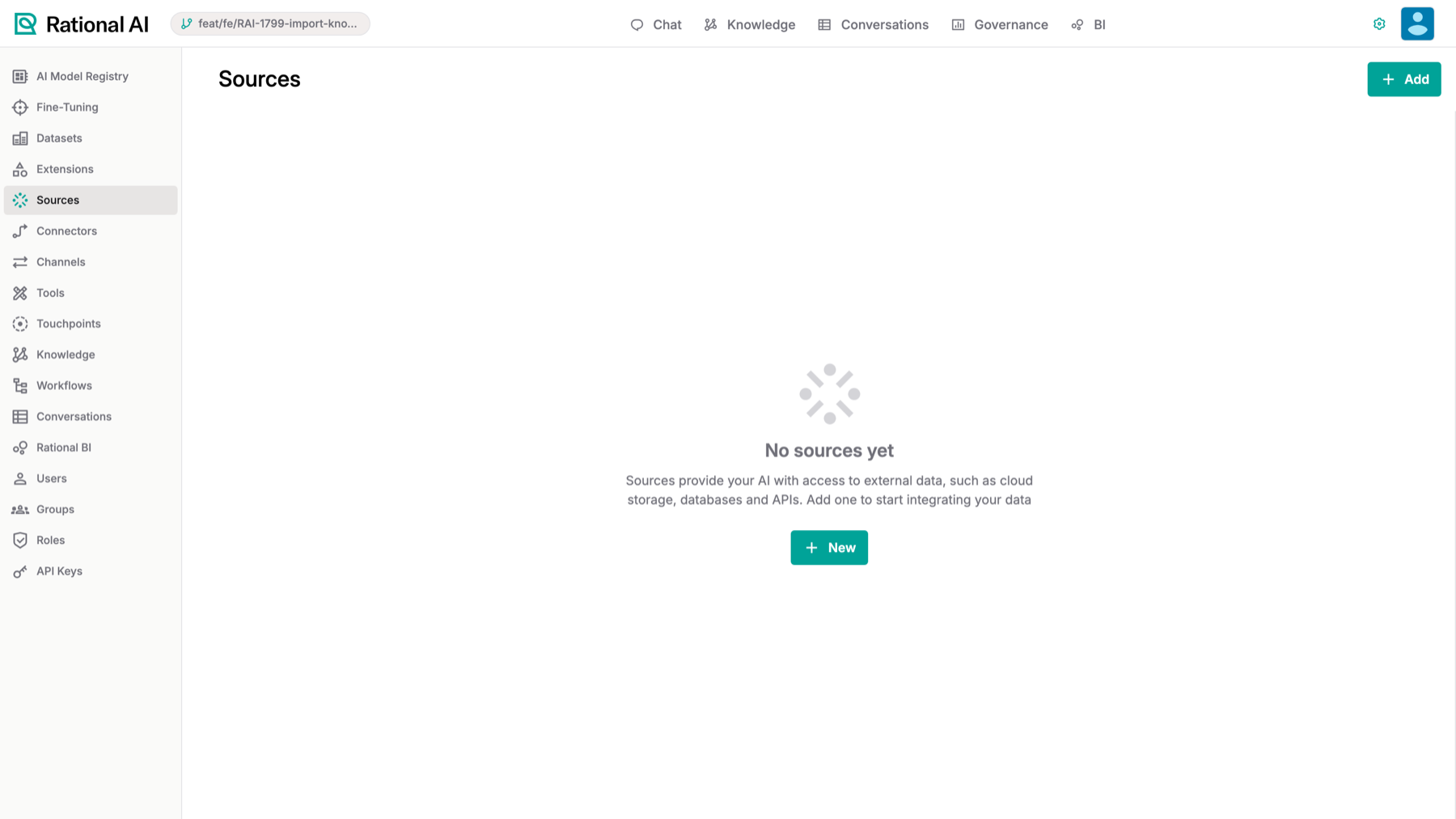
The Sources page. Sources give your AI access to external data such as cloud storage, databases and APIs.
This guide covers the source types you can configure today: extension-contributed sources such as ArXiv Catchup, the built-in HTTP source, and the robots.txt behaviour of the Fetch extension.
A data source defines where Rational AI pulls files from when it syncs a Knowledge. Some sources are built in (such as HTTP). Others come from extensions — add-on packages that plug new capabilities into Rational AI. Installing an extension that declares a source provider makes a new source type available, each with its own configuration form. To connect and sync an external system end to end, see Integrate data.
Prerequisites
Before you start, make sure you have:
- Administrative access: an account with source and extension management privileges.
- A Knowledge to attach the source to (see Settings → Knowledge).
- The relevant extension installed when configuring an extension-contributed source (see Settings → Extensions).
Configure an extension-contributed source (ArXiv Catchup)
Use this when the content you want comes from a system that an extension knows how to talk to, rather than a plain web address. ArXiv Catchup is the first example: it lists the PDFs to pull from a chosen arXiv category and downloads them on each sync.
Install the extension
Go to Settings → Extensions and install the ArXiv Catchup extension. A source-provider-only extension installs directly, with no extra configuration step.
Add and configure the source
- Go to Settings → Sources and add a new source, choosing the ArXiv Catchup type. Extension sources appear with their own icon.
- Select a Group, then an Archive, then a Category. These cascade through arXiv's fixed subject taxonomy, so each choice narrows the next.
- Choose a window for how far back to look for papers.
- Set the max-papers limit (default
500) to cap how many papers each sync fetches. - (Optional) Add a cron schedule — a time-based rule, like "every night at 2am" — to sync the source automatically.
Save and sync
Save the source, then run a Sync to download the PDFs into the Knowledge. A sync is the run that fetches the latest content from the source.
arXiv rate-limits bulk access. The max-papers limit (default 500) caps how many papers each sync downloads, so leave it in place unless you have a specific reason to raise it.
Configure an HTTP source
Use the HTTP source when your content lives at one or more web addresses you can point Rational AI straight at.
Add the URLs
- Go to Settings → Sources and add a new source.
- In the Type dropdown, select HTTP. The HTTP type shows a globe icon alongside the other types.
- Enter at least one URL. Each must be a valid
http://orhttps://address. - Select Save.
How validation works
Save stays disabled until you provide at least one non-empty URL, and stays disabled if any URL is not a valid http:// or https:// address. When an address is invalid, an inline error appears under that field so you can fix it before saving.
Make the Fetch extension ignore robots.txt
By default the Fetch extension respects robots.txt on every call. robots.txt is a file websites publish to tell automated crawlers which pages they may visit. Respecting it is usually the right thing — but it can cause a direct, user-initiated fetch (for example, an API endpoint that robots.txt disallows) to be refused as if it were crawler traffic. You can make this behaviour configurable.
- Go to Settings → Extensions and open the Fetch extension configuration.
- Toggle the Ignore robots.txt checkbox. Boolean parameters render as an inline checkbox in the extension config UI.
- Save the configuration.
The extension's config schema is stored at install time, so an existing Fetch install must be reinstalled before the Ignore robots.txt toggle appears. With the toggle off (the default), robots.txt is respected; with it on, the previously-blocked fetch succeeds.
Result
Your Knowledge now has the data sources it needs: an extension-contributed source such as ArXiv Catchup that syncs PDFs from a chosen category, validated HTTP sources that fetch from one or more web URLs, and a Fetch extension whose robots.txt handling matches how you intend to use it. Once a source is saved and synced, its content is available for the Knowledge to process.