Import, export, and time out workflow rules
Once you've built a few workflows and processing rules, you'll want to reuse them. Rather than rebuilding a rule by hand in every environment, Rational AI lets you save its definition to a file, load it somewhere else, and cap how long a workflow is allowed to run. This guide covers all three: exporting a rule, importing one or many from JSON, and setting an execution timeout.
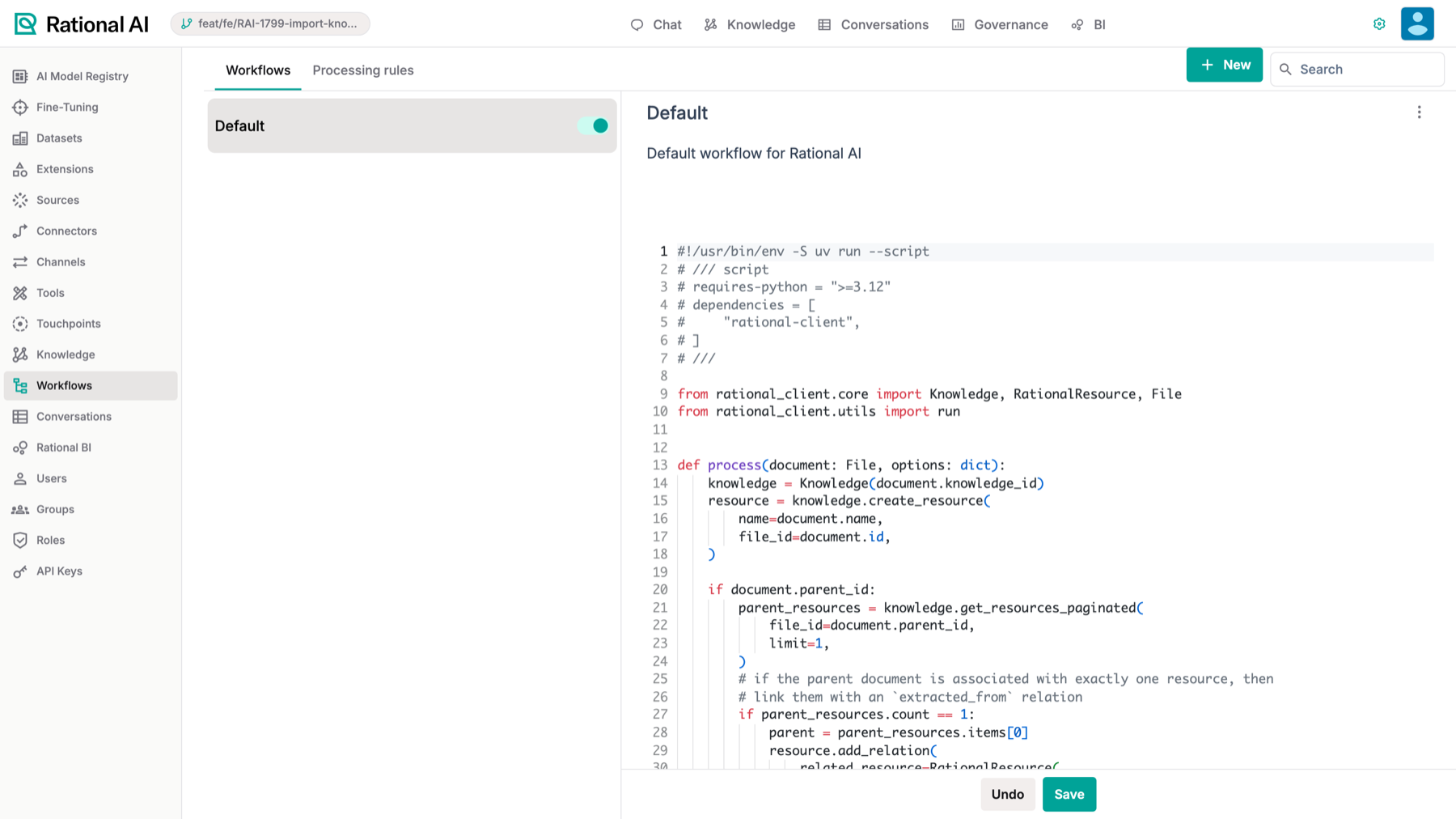
Settings → Workflows: the Workflows and Processing rules tabs, with the selected workflow’s script on the right.
A workflow or processing rule is just a recipe for transforming data. Rational AI can save that recipe as a portable JSON file (a plain-text format that travels cleanly between environments) or as the underlying Python code that actually runs it. Exporting a rule writes one of these files; importing reads a JSON file back in as a draft. A workflow can also carry an execution timeout, so a run that takes too long is stopped instead of hanging indefinitely.
Prerequisites
Before you start, make sure you have:
- Permissions to access the AI Control Room Settings area.
- At least one workflow or processing rule already created (needed for export and timeout).
- A JSON definition file on hand, if you intend to import.
Export a rule
Export a rule when you want to copy it into another environment, hand it to a teammate, or look at exactly how it works under the hood. You can save it as a portable JSON definition or as the runnable Python code behind it.
- Navigate to Settings → Workflows from the left sidebar.
- Select the workflow or processing rule you want to export from the list.
- Open the rule's three-dot menu.
- Choose the format you need:
- Export (JSON) downloads the rule's portable JSON definition.
- Download Python code downloads the rule's underlying Python script.
Reach for JSON when the goal is to move a rule into another environment via import — it's the only format the importer accepts. The Python code download is for inspecting or running the rule's logic locally; you can't import it back in.
Import rules from JSON
Import when you're bringing in a rule someone exported elsewhere, instead of building it from scratch. You can load several at once.
- Navigate to Settings → Workflows from the left sidebar.
- Select + New.
- When prompted, choose to import JSON rather than create from scratch.
- Select one or more JSON definition files.
Each imported definition lands in the list as an unsaved draft. Review each one, then save the ones you want to keep — nothing is persisted until you do.
Importing never overwrites or activates anything on its own. Even when you import a batch of definitions in a single action, they all arrive as drafts and stay inert until you explicitly save each one.
Set a workflow execution timeout
Give a workflow a timeout when you want a safety cap on its run time — so a run that gets stuck is stopped automatically instead of hanging.
- Navigate to Settings → Workflows from the left sidebar.
- Select the workflow you want to configure.
- Open the workflow's three-dot menu and select Workflow Settings (it sits between Export (JSON) and Delete).
- In the modal, enter the timeout in minutes. It must be a whole number of one minute or more (the field shows the placeholder Enter timeout in minutes).
- Select Save.
The timeout is stored on the workflow and applied to every future run.
Result
You can now carry workflow and processing rules between environments — export a rule as JSON (or as Python code to inspect locally), and import JSON definitions as drafts you save when ready. And you can keep any workflow from running away by capping its execution time in minutes.