Embed a Knowledge
A Knowledge doesn't have to live only inside the Control Room. With the Embed feature you can drop a Knowledge onto any web page as a self-contained widget — visitors browse its resources and chat with it, right there on your site, without signing in. This guide covers configuring the widget on the Embed settings tab and pasting it into a page.
The embed widget is a public, read-only window onto one Knowledge. You decide what it shows — which views, whether visitors can search or filter, whether a chat is available — and Rational gives you an HTML snippet to paste into your site. The widget loads in an isolated frame and talks to your Knowledge through a single embed key, so no Control Room login is ever required of your visitors.
Prerequisites
Before you start, make sure you have:
- Administrative access: an account with Knowledge management privileges.
- A Knowledge to publish: open the Knowledge tab from the main navigation and select the card for the Knowledge you want to embed.
- A place to paste the snippet: access to the HTML of the page where the widget should appear.
Open the Embed settings
Open the Knowledge, go to its settings, and select the Embed tab. The tab is organized into three parts: a General section for the system prompt and the generated snippet, an Actions section of toggles for what visitors can do, and a Chat section of toggles for the conversation experience.
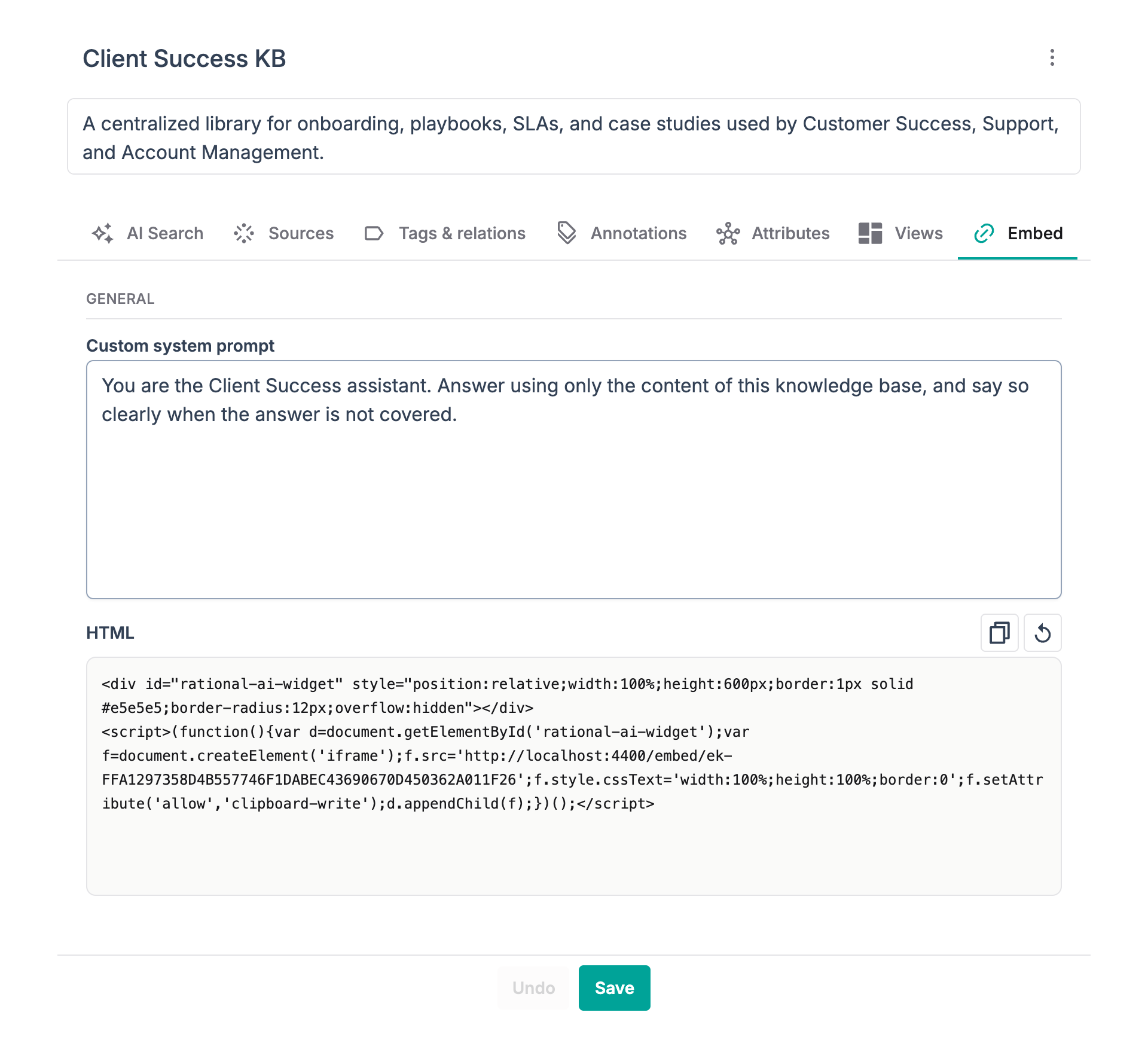
The Embed settings tab: system prompt and snippet under General, with the Actions and Chat toggles below.
Set the system prompt
The system prompt shapes how the widget's chat answers. Use it to give the assistant its role and its rules.
- In the General section, write a custom system prompt — for example, telling the assistant to answer only from this Knowledge's content.
- Save the tab (with the settings footer) to apply it.
Choose what visitors can do
The Actions toggles decide which controls appear in the widget's toolbar and panels.
| Toggle | What it enables |
|---|---|
| Filters | Filter resources by category, tags and relations. |
| Views | A view switcher, so visitors can change how resources are shown. |
| Search | A search bar over the resources. |
| Resource details | A side panel with a resource's details, annotations and chunks. |
When Views is on, the widget shows the same enabled views as the knowledge page — including your custom views. Turn it off to pin the widget to a single view.
Tune the chat experience
The Chat toggles control the conversation, when a chat is available on the widget.
| Toggle | What it enables |
|---|---|
| Suggested questions | Starter prompts shown when the chat opens. |
| Source visibility | Shows which sources were used to generate each response. |
| Copy | A copy button on each message. |
| Feedback | Lets visitors rate and report the AI's responses. |
Get the embed snippet
Once the Knowledge is configured, Rational generates the HTML you paste into your site.
- Save the Embed tab at least once — this generates the widget's embed key.
- In the General section, copy the generated HTML snippet with its copy button.
- Paste the snippet into the page where you want the widget to appear.
The snippet only appears once the embed key exists, so if you don't see it yet, save the tab first. The snippet is a small <div> plus a loader script that mounts the widget in an isolated frame.
See the widget
Pasted into a page, the widget renders as a compact panel: the Knowledge's name, the toolbar you configured (view switcher, search, filters), the resources themselves, and — if a chat is available — a chat launcher in the corner.
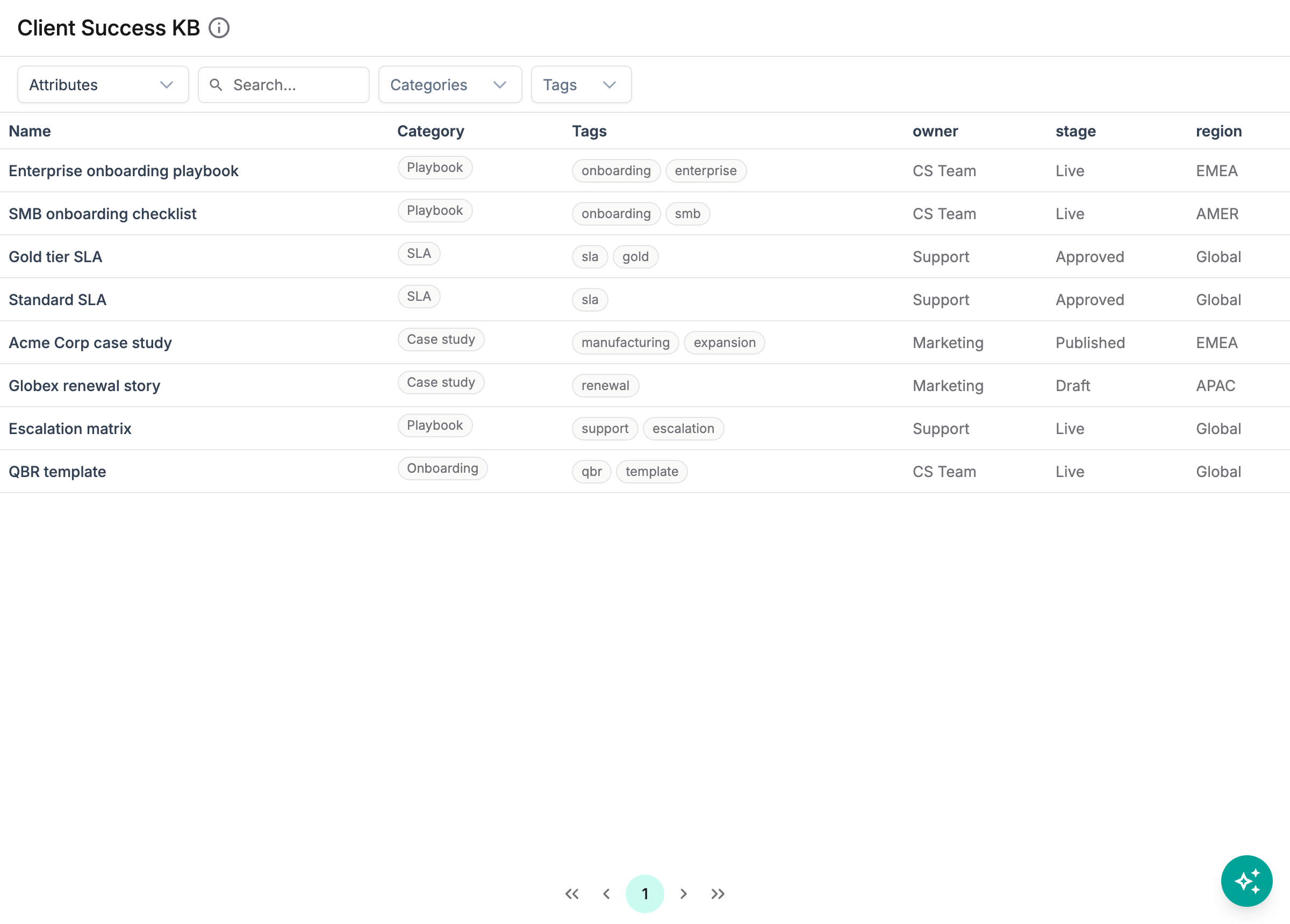
The embedded widget: the Knowledge's resources, the configured toolbar, and a chat launcher.
Rotate the embed key
The embed key is what ties a published snippet to your Knowledge. If a snippet is ever shared where it shouldn't be, rotate the key to cut it off.
- On the Embed tab, select Rotate key and confirm.
- A new key is generated. Copy the fresh snippet and update it everywhere the widget is embedded.
Rotating the key immediately stops every snippet that used the previous key. Only rotate when you're ready to replace the snippet wherever it's published.
Result
You can now publish a Knowledge as a widget on any site: set the assistant's system prompt, choose which actions and chat features visitors get, copy the generated snippet, and rotate the embed key whenever you need to. Visitors browse and ask questions against your Knowledge without ever leaving your page — or signing in.
To change which views the widget can show, see Custom views.