Import a Knowledge base
Importing rebuilds a Knowledge from a .zip archive that was previously exported from Rational AI, so you can move it into a new environment in one step instead of reassembling it by hand.
A Knowledge is the searchable collection of content your AI answers from, bundled together with the settings that control how it retrieves and responds. An export archive packages that whole bundle, the content and the configuration, into a single .zip file. Importing unpacks it and recreates the Knowledge on the spot. To produce an archive in the first place, see Export a Knowledge.
You'd typically import a Knowledge to:
- Promote it between environments — for example, move a Knowledge you built in staging into production.
- Restore a backup — bring back a Knowledge from an archive saved earlier.
- Share a curated Knowledge — hand a ready-made Knowledge to another tenant (a separate, isolated workspace).
Prerequisites
Before you start, make sure you have:
- Administrative access — an account with Knowledge management privileges.
- An export archive — a
.zipfile produced by the Export a Knowledge action.
Import a Knowledge
Use this when you have an archive in hand and want a working copy of that Knowledge in the current environment.
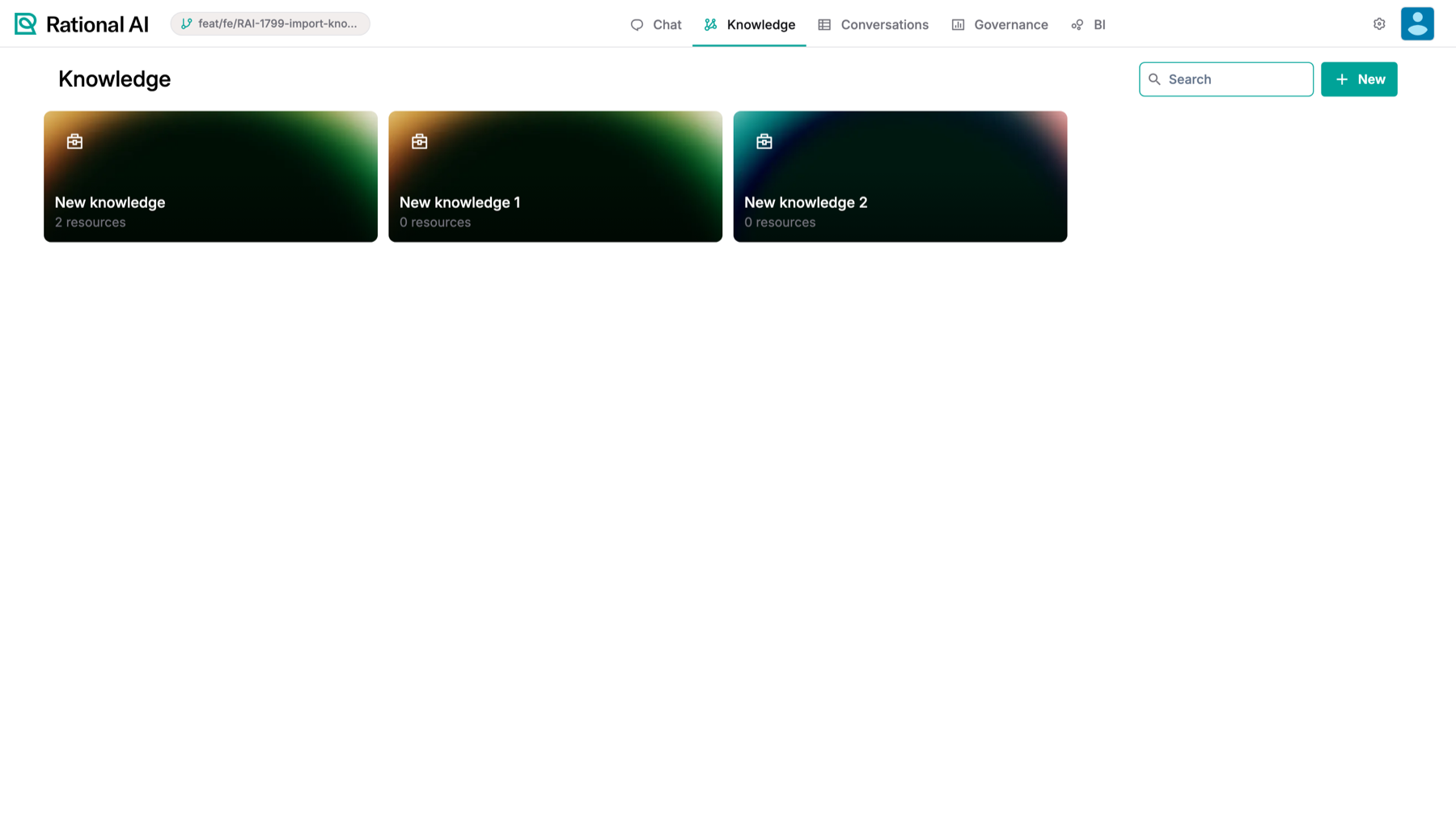
The Knowledge settings page: the list of Knowledges on the left, the selected Knowledge’s configuration on the right. Use New (top-right) to create or import a Knowledge.
- Go to Settings → Knowledge.
- Select the New button. It opens a dropdown with two choices:
- New knowledge — starts an empty Knowledge from scratch (see Create a Knowledge).
- Import knowledge — rebuilds a Knowledge from an archive.
- Select Import knowledge, then choose the
.ziparchive from your computer. - The archive uploads, and Rational AI recreates the Knowledge.
Importing into an empty environment
A brand-new tenant has no Knowledge yet, and its empty-state page shows the same New button. You don't need to create a placeholder Knowledge first — select New → Import knowledge and bring one in directly.
On a fresh tenant, importing is the fastest way to get started: a single archive populates the environment with both content and configuration, with nothing to set up beforehand.
Result
When the import finishes, the Knowledge list reloads and Rational AI takes you straight to the newly imported Knowledge. A success toast (a brief on-screen confirmation message) tells you the import worked. If the archive is invalid or the upload fails, an error toast explains what went wrong.
The imported Knowledge keeps the resources and configuration captured in the archive. Before you put it into use, review its settings — AI Search, Touchpoint, and processing rules — because environment-specific values such as AI models can differ from one tenant to another.