Govern AI applications and provider costs
Once several teams start calling models through Rational AI, two questions get hard to answer: which applications are actually using our AI, and what is each one really costing us. The Applications tab answers the first, and provider costs answer the second. This guide covers both: taking inventory of the applications that reach your proxy, registering them with an owner and a risk tier, and entering the pricing that turns raw token counts into euros.
An application is whatever calls Rational AI through the proxy — an internal copilot, a batch job, a customer-facing assistant. Each call carries an application key, and Rational AI records it. Keys it has never seen appear as Unregistered: they are counted and costed, but nobody has claimed them yet. Registering a key attaches the governance metadata — display name, owner, business unit, status, environment, risk tier, tags — so the inventory reads as a list of accountable applications rather than a list of strings.
Prerequisites
Before you start, make sure you have:
- Access to Governance: an account that can open the Governance area.
- Traffic through the proxy: the inventory is built from observed requests, so a brand-new tenant lists nothing until something calls a model.
- Provider pricing to hand if you intend to complete the cost picture: your contract rates, subscription plans, or hosting costs.
Take inventory of your applications
Open Governance and select the Applications tab. The page is titled Discovered from proxy traffic · register to assign ownership, risk, environment, and governance tags — a reminder that nothing here was declared up front: Rational AI found it.
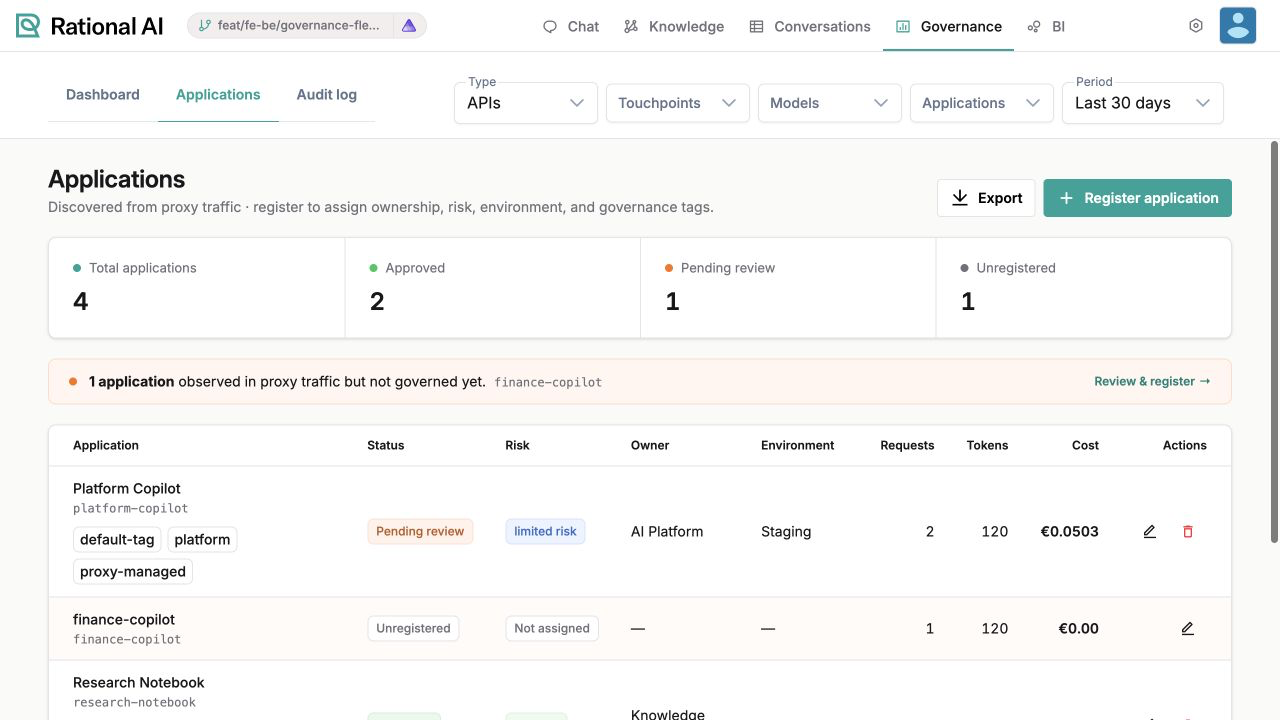
The Applications tab: a summary strip, a callout for keys nobody has claimed, and one row per application.
The strip across the top counts your inventory by state: Total applications, Approved, Pending review, and Unregistered. Below it, a callout appears whenever traffic arrives under a key that has never been registered — "1 application observed in proxy traffic but not governed yet", followed by the key itself and a Review & register → shortcut.
Each row in the table then tells you one application's story:
- Application — the display name, the raw key beneath it, and any tags you attached.
- Status — Pending review, Approved, Blocked, or Unregistered for a key that was never claimed.
- Risk — the risk tier, or Not assigned.
- Owner and Environment — who is accountable, and where it runs.
- Requests, Tokens, and Cost — what it consumed in the selected period.
- Actions — edit the application, or delete a registration.
The Requests, Tokens, and Cost columns are scoped by the filters at the top of the Governance area — Period above all. Widen the period and the same application shows larger numbers; it is the same application either way.
Register an application
Register a key to turn an anonymous string in the inventory into something with an owner you can ask about it.
- On the Applications tab, select + Register application — or Review & register → in the unregistered callout, which pre-fills the key it found.
- Fill in the Application key. It must match the application tag sent to the Rational AI proxy, character for character — this is the join between the registration and the traffic.
- Add a Display name and, optionally, a Business unit and a Description.
- Set the Owner — a team or a person.
- Choose the Status: Pending review (the default), Approved, or Blocked.
- Choose the Environment: Development, Test, Staging, or Production.
- Choose the Risk tier: Low, Limited (the default), High, or Unacceptable.
- Add Tags as a comma-separated list, for example
customer-facing, pii, critical. - Select Save application.
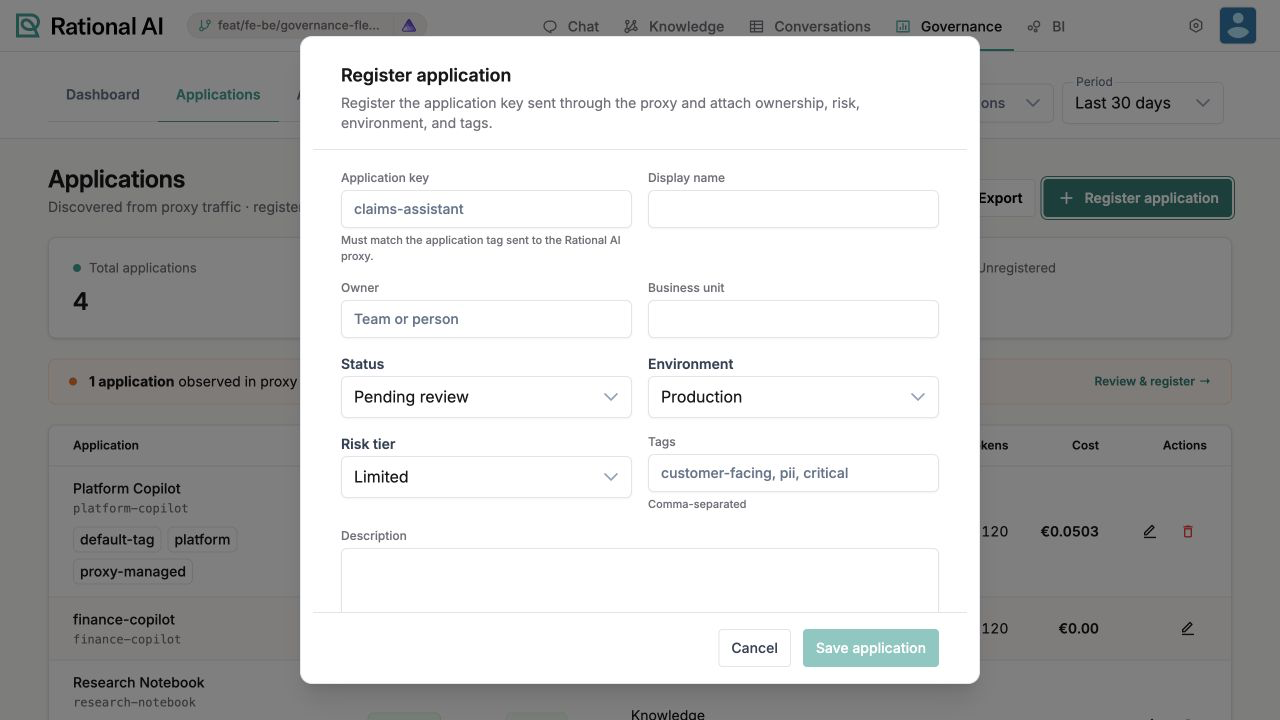
The Register application dialog. The application key is the only field that has to match something outside Rational AI.
To change any of this later, use the edit action on the application's row — the same dialog opens as Edit governed application.
Registration is an inventory and accountability exercise, not an access control. A key marked Blocked is a statement about how you intend to treat that application, not a filter that stops its requests. To control what an application may reach, use roles and touchpoints.
Tag a request with its application
Rational AI attributes a request to an application in one of two ways, in this order:
- The
X-RationalAI-Applicationheader sent by the caller. The header always wins. - The proxy's default application key, used when the caller sends no header. You set it on the third-party model in the AI Model Registry — the Default application key field (for example
claims-assistant), described there as used to attribute every request through this proxy when the caller does not sendX-RationalAI-Application.
Set the default key on any proxy whose callers you don't control, and the traffic still lands under a name instead of under nothing.
Export the inventory
When someone outside Rational AI needs the list — a review meeting, a compliance pack, a spreadsheet — export it.
- On the Applications tab, select Export.
- A CSV is downloaded, named
governed-ai-applications-plus today's date.
The Audit log tab has its own Export for the call-by-call record; it is disabled when the current filters return no rows.
Price what you are using
Token counts only become costs once Rational AI knows what your providers charge. Select Manage provider costs on the Governance dashboard (or Review provider costs → in the Cost composition card) to jump to Settings → Connectors, where pricing lives.
Model prices
A model's price is not always "so much per million tokens", so the price editor covers the shapes providers actually bill in:
- The currency the provider charges in, so you never add dollars to euros.
- Token dimensions — input, output, and cached input priced separately.
- Per-request, per-image, and web-search components.
- Time-based billing for self-hosted models and reserved capacity, charged by the hour, minute, or second and derived from how long the deployment was actually up.
For providers that publish a catalog, prices can be imported instead of typed: an OpenRouter connector can synchronize model pricing on demand, and manual and contract overrides you entered yourself are preserved rather than overwritten.
Provider subscriptions
Some spend does not vary per call at all — a monthly API plan, a yearly enterprise token pool. Model it as a subscription on the provider's connector.
- Open the provider's connector in Settings → Connectors and add a Provider subscription.
- Enter the recurring amount and its period — Monthly or Yearly — and the dates it starts and (optionally) ends.
- Choose the Cost allocation, for example Allocate by application usage, which spreads the fixed fee across applications in proportion to what they used.
- Under Included usage and overage, add an allowance per usage type: All tokens or Requests, how much is Included, the Scale (units, million, billion), and the Overage rate charged beyond it — per million tokens, or per unit for requests.
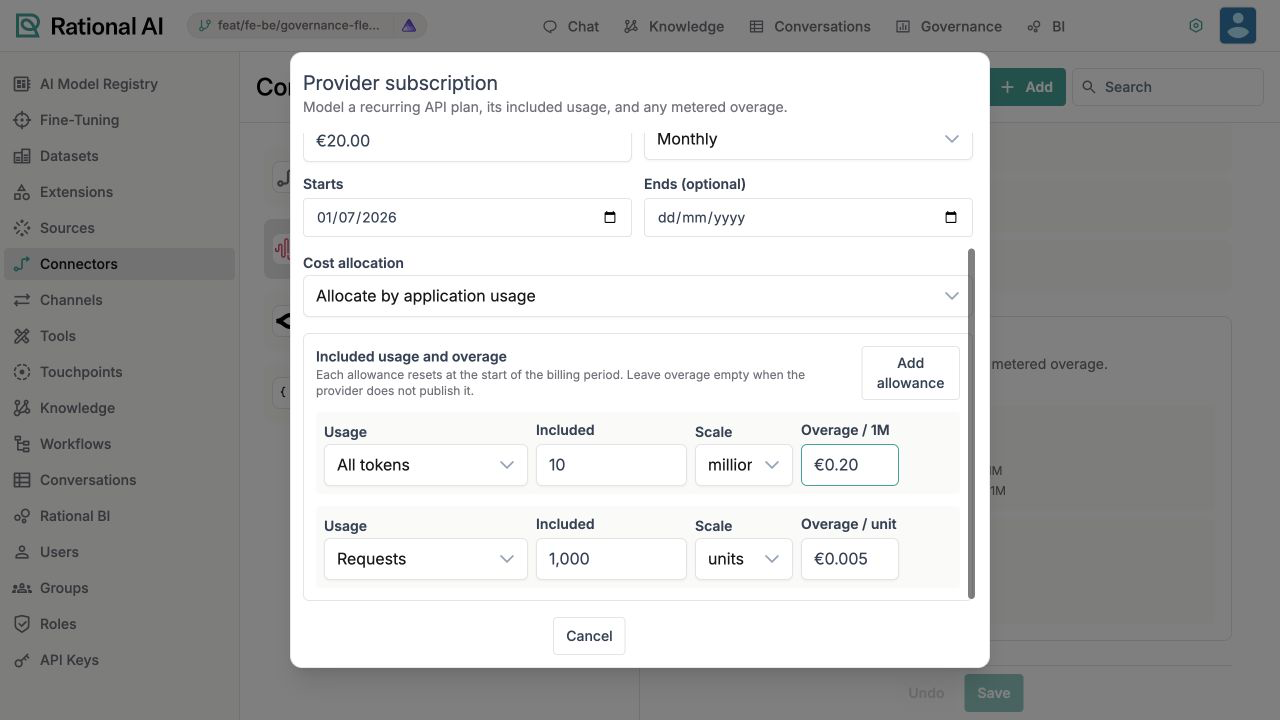
The Provider subscription dialog: a recurring plan, what it includes, and what happens once you exceed it.
Each allowance resets at the start of the billing period. If the provider does not publish an overage rate, leave the field empty rather than guessing — an invented rate quietly turns into an invented cost on the dashboard.
Check how complete your costs are
Pricing is never finished all at once, so the dashboard tells you how much of it is done. The Governance health card reports Cost coverage as a percentage and Unpriced requests as a count: calls that ran, that you paid for in the real world, and that Rational AI cannot cost because the model has no price. Fill those in and the coverage figure moves toward 100%, at which point the Total costs headline is worth quoting to a finance team.
The same card also shows the Error rate and the Cache hit rate for the period, so a spike in spend can be read next to a spike in retries.
Result
You have an inventory of every application calling your AI, each registered with an owner, an environment, a risk tier, and tags — and a callout that tells you when a new one appears. Requests are attributed by the X-RationalAI-Application header or the proxy's default key, the list exports to CSV, and provider pricing (per-token, per-request, time-based, subscriptions, or synchronized from a catalog) turns the token counts into costs you can actually defend, with Cost coverage telling you how much of the picture is still missing.